The service card
Every field on a service card — text, price, photographs, badges and recommendations — and how each one affects the guest's page.
When a service is selected, the Inspector on the right shows its settings, grouped under three tabs: General, Availability and Custom fields. This page covers the General tab, which holds the text, the price and the images. Groups have the General tab only, in a shortened form — a name, a description, a size and an image — since there is nothing to price about a section.
No change takes effect until the Save changes button at the bottom of the screen is pressed. Once saved, the card in the middle pane updates immediately.
Name and description
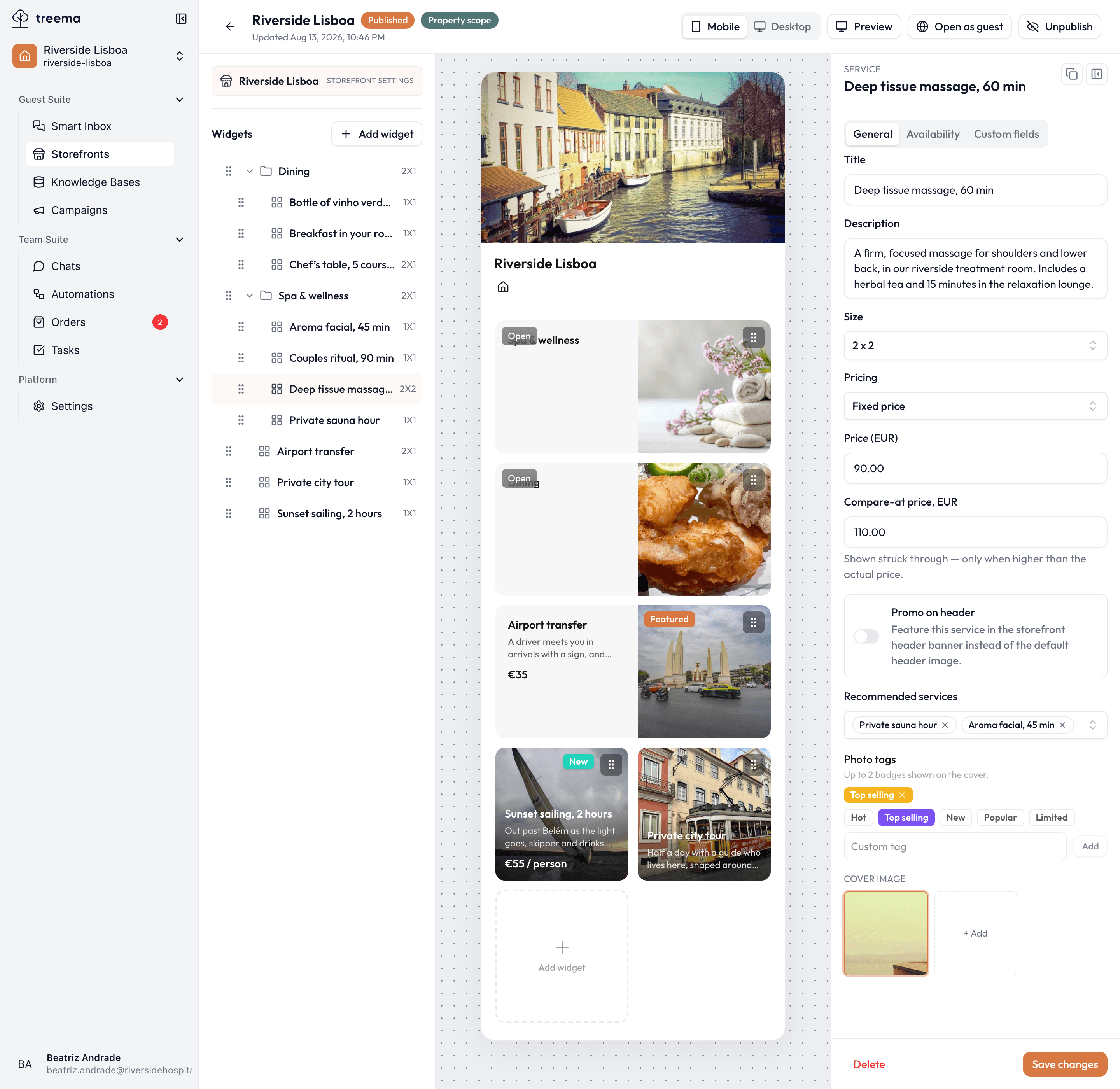
- 1
- 2
- General, Availability and Custom fields — services have all three
- The text, the size, the price and the merchandising fields
Title is the only field a service cannot go without — it's the name on the card and the heading of the detail page. Write it the way a guest would say it: "60-minute deep tissue massage", not "MASSAGE_60_DT".
Description is optional and appears under the title on the detail page. Two or three sentences are recommended, covering what the service includes, how long it takes and anything else a guest would otherwise have to ask. It is the cheapest way to reduce the number of calls to reception.
Size determines how much room the card takes on the page. The grid itself is described in how a storefront is put together.
Price
Pricing decides both what the guest sees and what they're asked before ordering:
| Choice | On the card | Good for |
|---|---|---|
| Fixed price | One amount. | Anything with a set rate — a treatment, a bottle, a set menu. |
| Per person | The amount, marked as being per person, and the guest is asked how many people. | Tours, tastings, transfers priced by head. |
| On request | No amount — the guest sees that the price is on request and sends an enquiry. | Bespoke arrangements, anything you quote case by case. |
With Fixed price or Per person, enter the amount in Price. The currency is the storefront's own and is shown in the field's label. The field accepts digits and a decimal separator; every other character is rejected as it is typed, with "Price must contain only numbers".
Compare-at price is the "was" price. Set it above the real price and the card shows it struck through next to the amount you're actually charging. Below or equal to the real price it simply doesn't appear — the field says as much — so a discount that isn't a discount can't be advertised by accident.
Photographs
The Cover image section holds a strip of thumbnails and a + Add button. Several photographs can be uploaded to one service; the outlined image is the primary one — it appears on the card and opens the detail page. Hovering over any other image offers Set primary and Delete.
Recommendations for uploading photographs
A service with no photo still works — but on a page where every other card has one, it reads as the thing nobody bothered with. If you have one good picture of a treatment room, use it on all the treatments before you publish rather than leaving the gaps.
Making one service stand out
Three fields exist for drawing attention to a service on the storefront. All three work only for as long as they are used selectively.
Photo tags place up to two small badges on the photograph, with preset or custom wording: "Hot", "Top selling", "New", "Popular", "Limited", or your own. Overusing tags reduces their effect; badging no more than one card on a screen is what draws attention to a particular service.
Promo on header takes this service into the big banner at the top of the storefront instead of the default header image. It is the most prominent place on the page — one service at a time deserves it, typically whatever is seasonal.
Recommended services lists other services at the bottom of this one's detail page. A guest booking a late dinner is a good candidate for the airport transfer; a spa treatment pairs with another treatment. The picker offers the other services of this storefront — groups aren't offered, because a guest can't order a section.
Copying, and removing
The Duplicate button at the top of the Inspector creates a full copy of the card with every field filled in. It is the quickest way to build a family of similar services and then adjust each one slightly.
The Delete button at the bottom of the Inspector asks for confirmation before it acts, naming the card to be deleted.
The other two tabs
- Availability limits what the guest can pick in a date question — the days and hours, closed dates, how far ahead orders are taken. See when a service can be booked.
- Custom fields adds questions to the order, covered in asking the guest for details.