Asking the guest for details
Extra questions attached to a service, so an order arrives with everything your team needs to fulfil it.
Every order already carries the guest's name, their contact details and a free-text comment. What it doesn't carry is whatever your team specifically needs to know: which room, what time, how many people, any allergies. That's what custom fields are for — questions you attach to one service, answered when the order is placed.
They live on the Custom fields tab of a service, next to General. Groups don't have them: nobody orders a section.
Adding a question
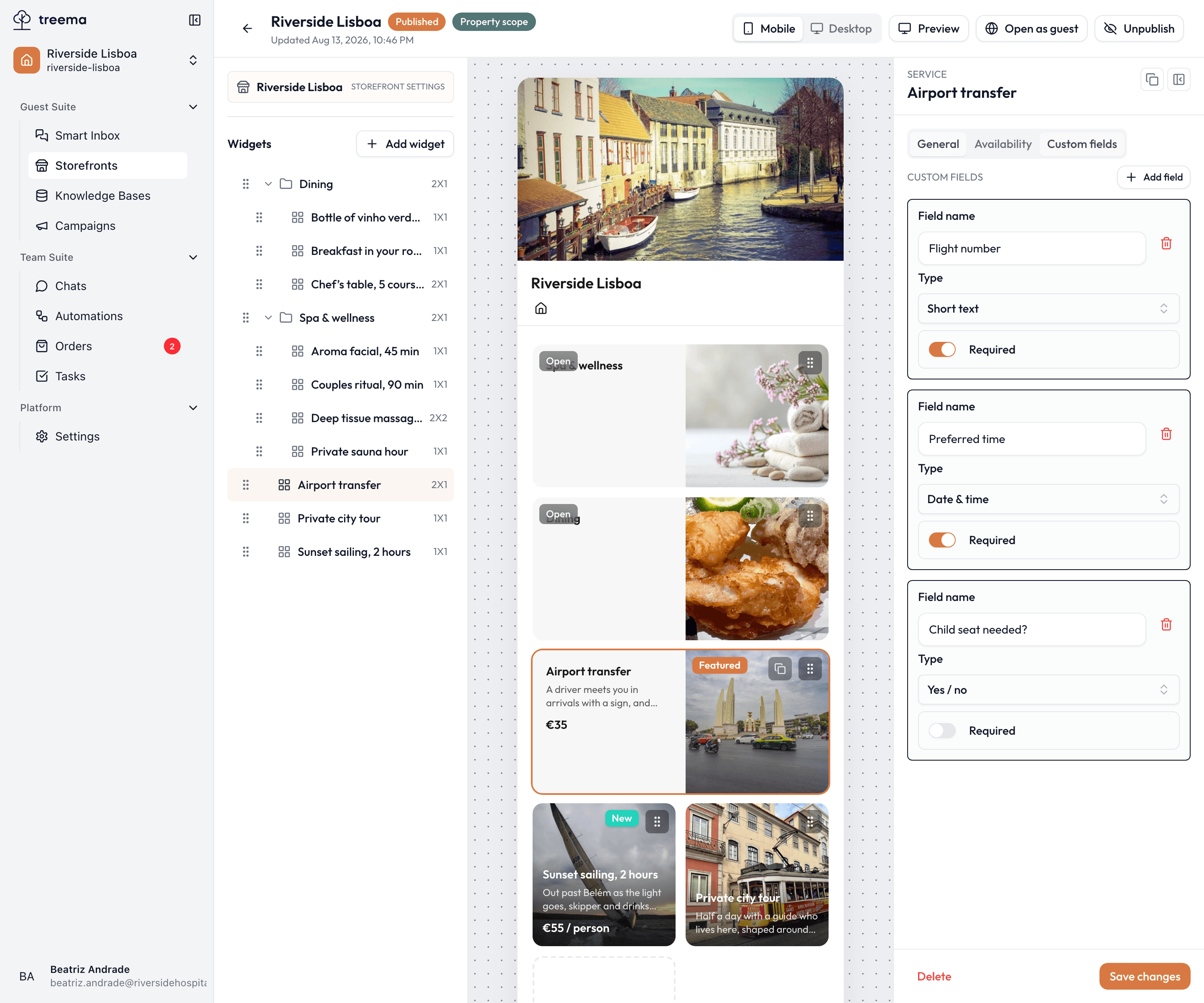
- 1
- One block per question: its name, its type, and whether it is required
Add field creates one and gives it a placeholder name. Each question has three settings:
- Field name — the question as the guest reads it. It is a label, not a sentence: "Room number", "Preferred time", "Number of guests".
- Type — what kind of answer is accepted, from the table below.
- Required — when on, the order can't be placed until it's answered.
The bin icon on the right removes a question. Questions are asked in the order they're listed here.
Remember to press Save changes at the bottom of the Inspector — questions save with the rest of the service.
The types of answer
| Type | What the guest gets | Use it for |
|---|---|---|
| Short text | A single-line box. | Room number, flight number, a name. |
| Long text | A multi-line box. | Special requests, notes for the chef. |
| Number | A box that takes digits. | Bags to collect, nights, quantity of something. |
| Single choice | A list where one option can be picked. | Massage pressure, seating preference. |
| Multi choice | A list where several can be picked. | Allergies, add-ons. |
| Yes / no | A simple toggle. | "Travelling with an infant?" |
| Date | A date picker. | The day a transfer is needed. |
| Date & time | A date and a time. | Anything with an appointment slot. |
Pick Single choice or Multi choice and an Options section appears under the question. Add option adds a line; each line is one thing the guest can pick, and the bin removes it. A choice question with no options gives the guest nothing to choose, so fill them in while you're there.
Dates work with the service's schedule
Date and Date & time are the questions the Availability tab acts on. If you've limited when a service can be booked, those limits are what the guest's picker offers — closed days are not selectable, and times outside your hours aren't shown. A service with no date question ignores the schedule entirely, because there's nothing to restrict.
Asking well
- Ask for what you'll act on. Every question is a moment the guest may abandon the order. A transfer needs a flight number; it does not need the guest's dietary preferences.
- Make required mean required. If your team can fulfil the order without the answer, leave it optional.
- Use choices instead of text where you can. "Preferred time" as free text produces "after lunchish"; the same question as choices produces something your team can put on a rota.
- Ask once. The guest already gives their name, phone and email at checkout — don't ask again in a custom field.
Answers arrive with the order and are shown alongside what was ordered, so whoever picks the order up sees them without having to go looking.