Assignees and watchers
Who does the work, who follows it, and how groups let you assign to a shift rather than a person.
Two different questions, two different fields, and teams get into trouble when they blur them: Assignees is who has to do the work; Watcher is who wants to know how it goes.
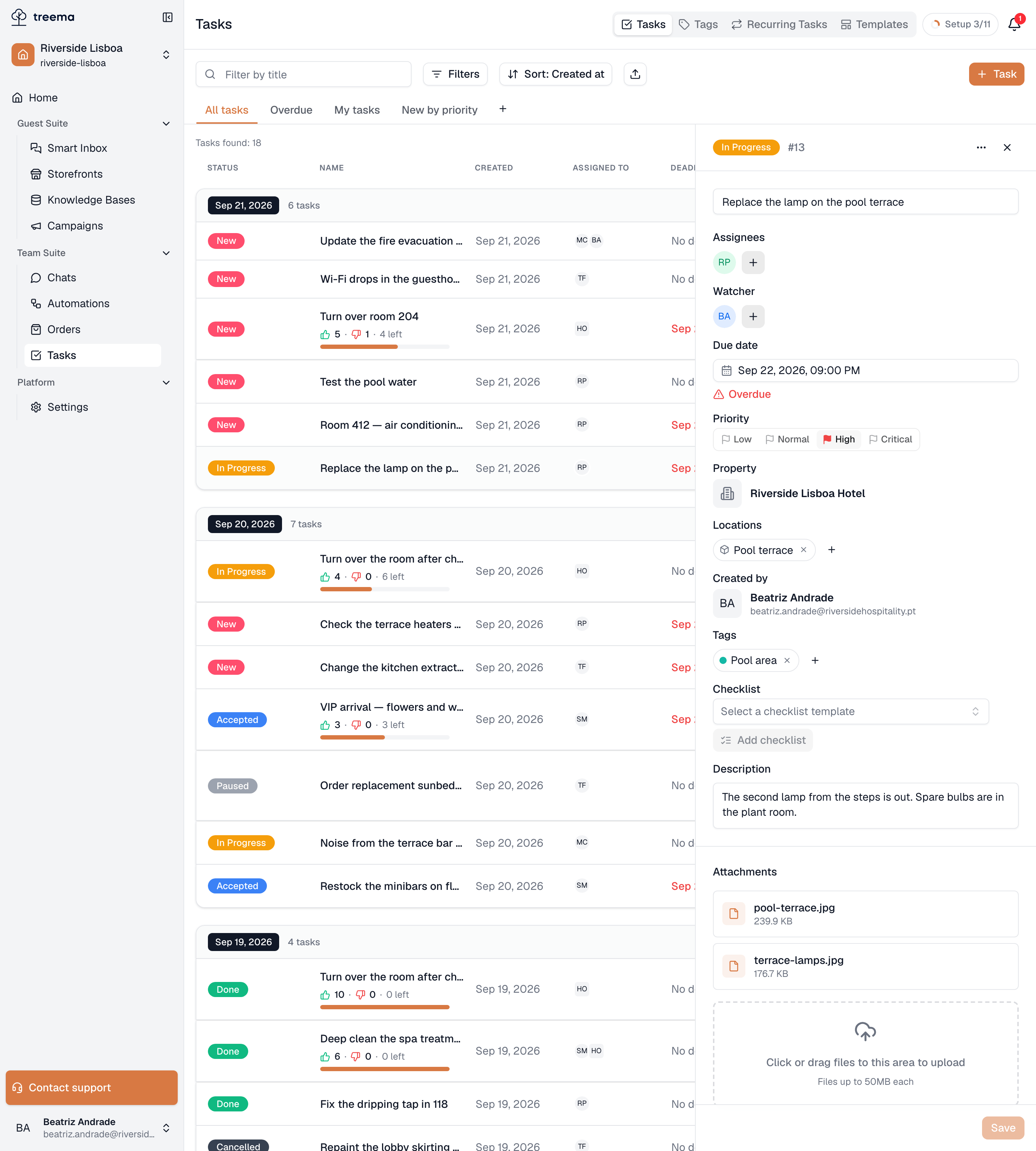
- 1
- 2
- The people or groups responsible for the work
- People kept informed without being responsible
Assignees
A task can be assigned to several people at once, and the field has two tabs:
- Users — named people.
- Groups — a whole user group, for work that belongs to a shift or a department rather than to a person.
A task must have at least one assignee or group when it's created; the form says so if you try without one. Later, the person doing it is changed by anyone whose access covers editing.
Assigning a named person tells them: they get a row in their activity feed, and a push notification if they use the mobile app. So assignment is how work is handed over, not just recorded.
A group is not the same as everyone in it
A group assignment says "this belongs to Housekeeping" — the task shows up for the people who work that property, and whoever picks it up moves it to Accepted. It doesn't single anyone out, which is exactly what you want for shift work and exactly what you don't want when one specific person must do the job. For that, name them.
Watchers
Watcher is for the manager who wants to know when the boiler is fixed but isn't fixing it. Watchers can't be assigned work by being watchers, and they don't appear as responsible anywhere — but they receive the same activity as assignees do: status changes, priority changes and comments.
Adding somebody as a watcher notifies them; so does removing them.
Use it instead of assigning a second person "so they know". Two assignees means two people who both think the other one is doing it.
Who you can pick
The lists only offer people who have access to the task's property, which is why the property comes first in every form. Before one is chosen, the field says Select a property first to assign users (and the same for watchers), and changing the property afterwards clears the people you'd already picked — the previous choice may simply not have access to the new one.
Groups follow the same rule. The tab offers the groups that belong to the task's property and the ones that belong to the whole workspace — a group from another property is never on the list. Change the property and any group that doesn't fit the new one is taken off the task, with a note saying how many were removed.
A workspace task offers people with workspace-level access to tasks instead, and only whole-workspace groups.
A deleted group on a template
The task template and recurring schedule forms show assignees and watchers as circles of initials, the same as a new task. One thing stands out on a template: a group that has since been deleted shows as a Removed group chip with an ×. The work is pointing at nobody, and swapping in a group that still exists is two clicks from there.
Reading it from the list
The list shows assignees and watchers as circles of initials — hover to see the name — with a count when there are more than fit. Unassigned and No watchers are shown in words rather than left blank, so an unassigned task is obvious while you scroll.
Both are also filters: Assignees and Watchers in the filter panel. "Everything on my plate" is the assignee filter set to yourself; "everything I'm following" is the watcher one.