Exporting tasks
Download the task list you're looking at as an Excel file, with comments and checklists if you want them — and what the file contains.
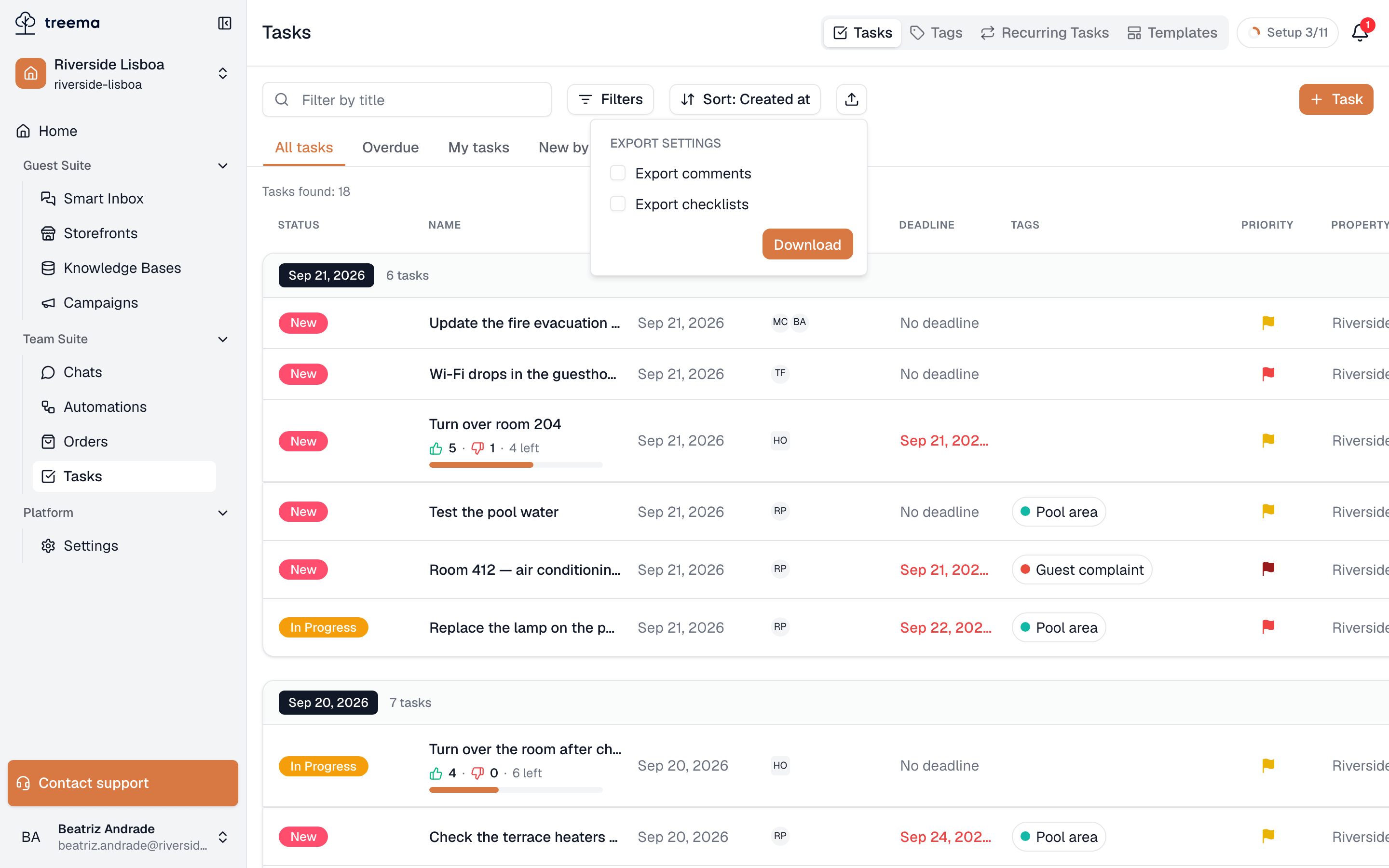
Export — the button with an upward arrow, beside Sort — downloads the task list you are
looking at as an Excel file (.xlsx): one row per task and, if you ask for them, its comments and
its checklist. It's how a week of housekeeping or a month of maintenance leaves Treema HQ for
a report, an owner or an archive.
- 1
- 2
- Export — the button beside Sort
- Export settings — comments, checklists, and Download
What ends up in the file
Exactly the list on your screen: the open view with its filters and sorting, plus whatever you typed into Filter by title. Every matching task is exported — not only the rows already loaded as you scrolled — in the same order as the list, and only tasks you are allowed to see.
Export is on the task list in the browser; the mobile app doesn't have it.
How many tasks you can export
Tasks found above the list tells you before you start:
| Tasks found | Export |
|---|---|
| None | Unavailable — No tasks to export. |
| Up to 2,000 | Available, whatever the filters. |
| 2,001 to 5,000 | Available once Created from and Created to are both set in Filters, no more than 31 days apart. Until then: More than 2,000 tasks: select a creation period of up to 31 days in Filters to export. |
| More than 5,000 | Unavailable — Too many tasks (N). Narrow the filters to 5,000 tasks or fewer to export. |
The 31 days count both ends: 1 to 31 March is fine, 1 March to 1 April is one day too many. Hover over an unavailable button to see which case you are in. For a busy month, set Created from and Created to to that month first.
Export settings
Click Export to open Export settings:
- Export comments — adds a Comments column.
- Export checklists — adds every checklist item as a row under its task.
Both start unticked, and this browser remembers what you ticked last time. Download starts the export: the button spins until the file is ready, and you can keep working meanwhile. The file holds the tasks that matched when you pressed Download, even if you change the filters while it is being prepared.
The file
Inside is one sheet, Tasks. Its first row says which Period it covers — the two dates, or All dates — and the table starts two rows below, under a header row that stays in place while you scroll.
| Column | What it holds |
|---|---|
| # | The task number. |
| Creator | Who created the task. |
| Created at | Date and time. |
| Due date | The due date, with the time if one was set; No deadline when there isn't one. |
| Assignees | People, then groups. |
| Property | The hotel, or Workspace for a workspace task. |
| Location | Each location on its own line, as a full path such as Main Building / Floor 4 / 412; Location deleted for one that no longer exists. Only when Locations is enabled for your workspace. |
| Title | The title. |
| Details | The description. |
| Status | The status. |
| Comments | Only with Export comments — see below. |
Headers and statuses come out in your language. Dates are written as day, month and year with a
24-hour time — 28.09.2026 14:05 — in your time zone, as in the app. A field the task doesn't have
shows "—". Priority, tags and watchers are not part of the file.
Comments
With Export comments, the Comments cell holds every comment on the task, oldest first, one per line, as date, time, author and text.
28.09.2026 14:05 Mariana Costa: Replaced it, one spare lamp left
Deleted comments are left out, and so are comments on checklist items.
Checklists
With Export checklists, four columns follow the task columns — Checklist category, Checklist item, Item assignees and Item status — and every checklist item gets its own row directly under its task:
- Item assignees are the item's own assignees, or its category's when the item has none.
- Item status is Done, Not done or Not marked.
Item rows are shaded and grouped under their task, so the − beside a task in Excel's margin folds its checklist away and + brings it back; every group starts open. A task without a checklist has no item rows.
If the export doesn't start
| Message | What to do |
|---|---|
| Too many tasks to export. Narrow the filters to 5,000 tasks or fewer | More tasks matched by the time you pressed Download — somebody has just added some. Narrow the filters and try again. |
| More than 2,000 tasks: select a creation period of up to 31 days in Filters to export | The same, past 2,000: set Created from and Created to no more than 31 days apart. |
| Failed to export tasks | Nothing was downloaded. Check your connection and press Download again. |