Staying informed
The activity bell — what lands there, how it's grouped, and how to keep it from becoming noise.
The bell in the top bar is where the work comes to find you. It carries a red count of what you haven't read, and clicking it opens your activity — everything that happened on the tasks you're on, alongside the team chats you're part of.
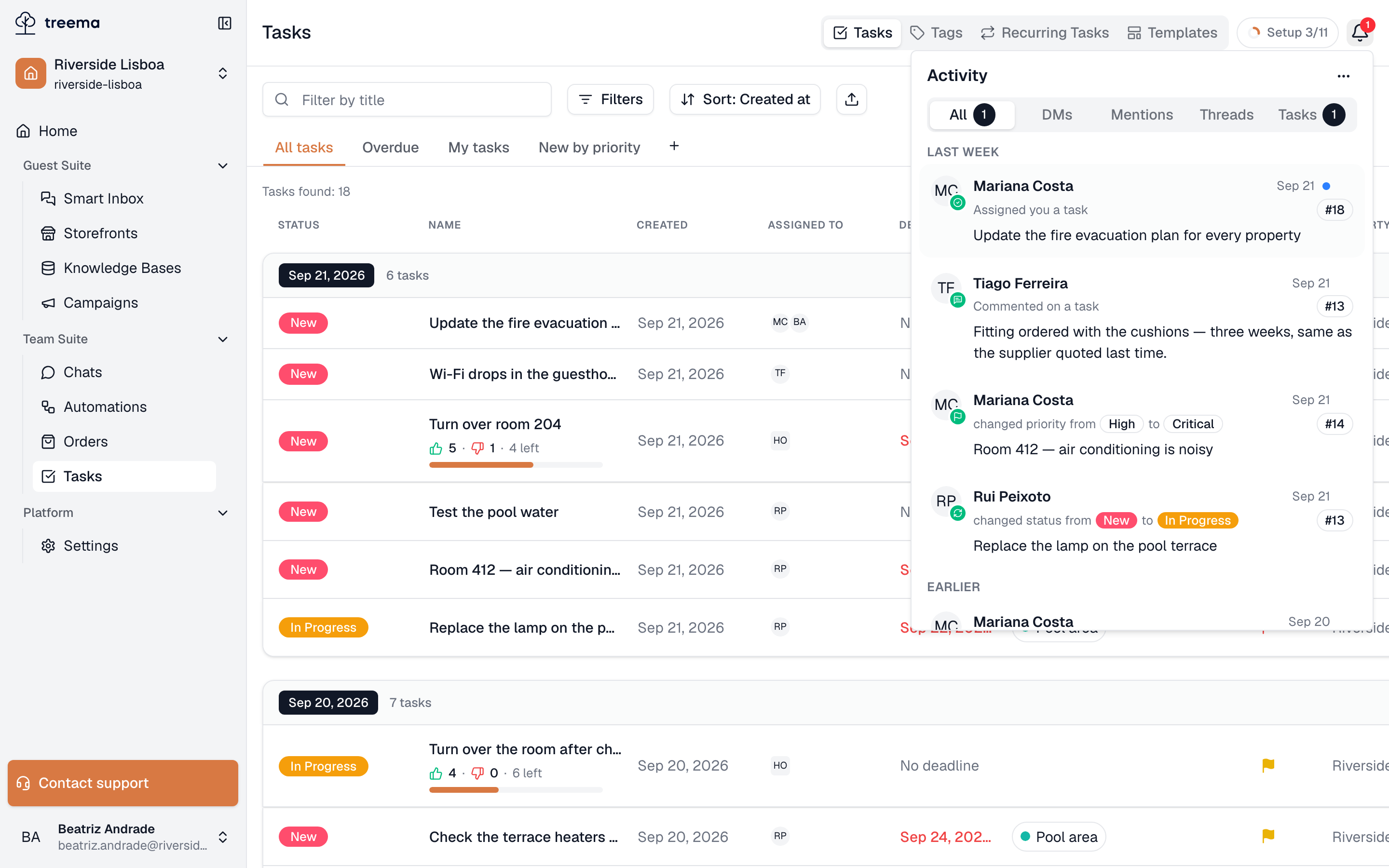
- 1
- Your activity, newest first, grouped by when it happened
What lands here
From tasks:
| You're told when | Because |
|---|---|
| Assigned you a task | You are now responsible for it. |
| Removed you from a task | You are not, any more. |
| Changed task status | Something you're on has moved. |
| Changed task priority | What was normal is now critical, or the reverse. |
| Commented on a task | Somebody wrote something on your task. |
| Mentioned you in a task | Somebody wants you specifically. |
| Added you as a watcher | You're now following a task. |
| Recurring task created | A schedule has produced today's task for you. |
You get these for tasks you're an assignee or a watcher of — that's what watching means.
Mentions are the exception: an @ reaches you whether or not you're on the task.
Reading it
Rows are grouped by when they happened — Today, This week, Last week, Earlier — and each shows who did it, what they did, the task's number as a chip, and its title or the comment itself. Unread rows carry a blue dot.
Clicking a row opens the thing it's about: a task row opens that task, a chat row opens that message. The rows for a task clear themselves once you open the task — reading the work is what counts as reading the notification, not clicking the row.
The tabs narrow it: All, DMs, Mentions, Threads, Tasks, each carrying its own count. Mentions is the one to check when you're short of time — it's the list of things somebody asked you for by name.
Keeping it clean
The menu at the top right of the panel has three:
- Mark all read — clears the count without deleting anything.
- Delete all read — tidies away what you've dealt with.
- Delete all — removes everything, read and unread, after a confirmation. There is no undo.
A single row can be dismissed with the × that appears when you hover it.
The bell is not the task list
Dismissing a notification does nothing to the task — the work is still assigned to you, still due, still in the list. Treat the bell as "what has happened since I last looked" and the task list as "what I have to do". Teams that use the bell as their to-do list lose work the moment somebody presses Mark all read.