Tags
Colour labels for tasks — creating them, what they're scoped to, and using them to filter.
A tag is a coloured label you put on tasks so you can find them together later: Plumbing,
VIP guest, Waiting for parts. Tags don't change anything about a task — they're for you, so that
"show me every plumbing job still open" is one click instead of a memory exercise.
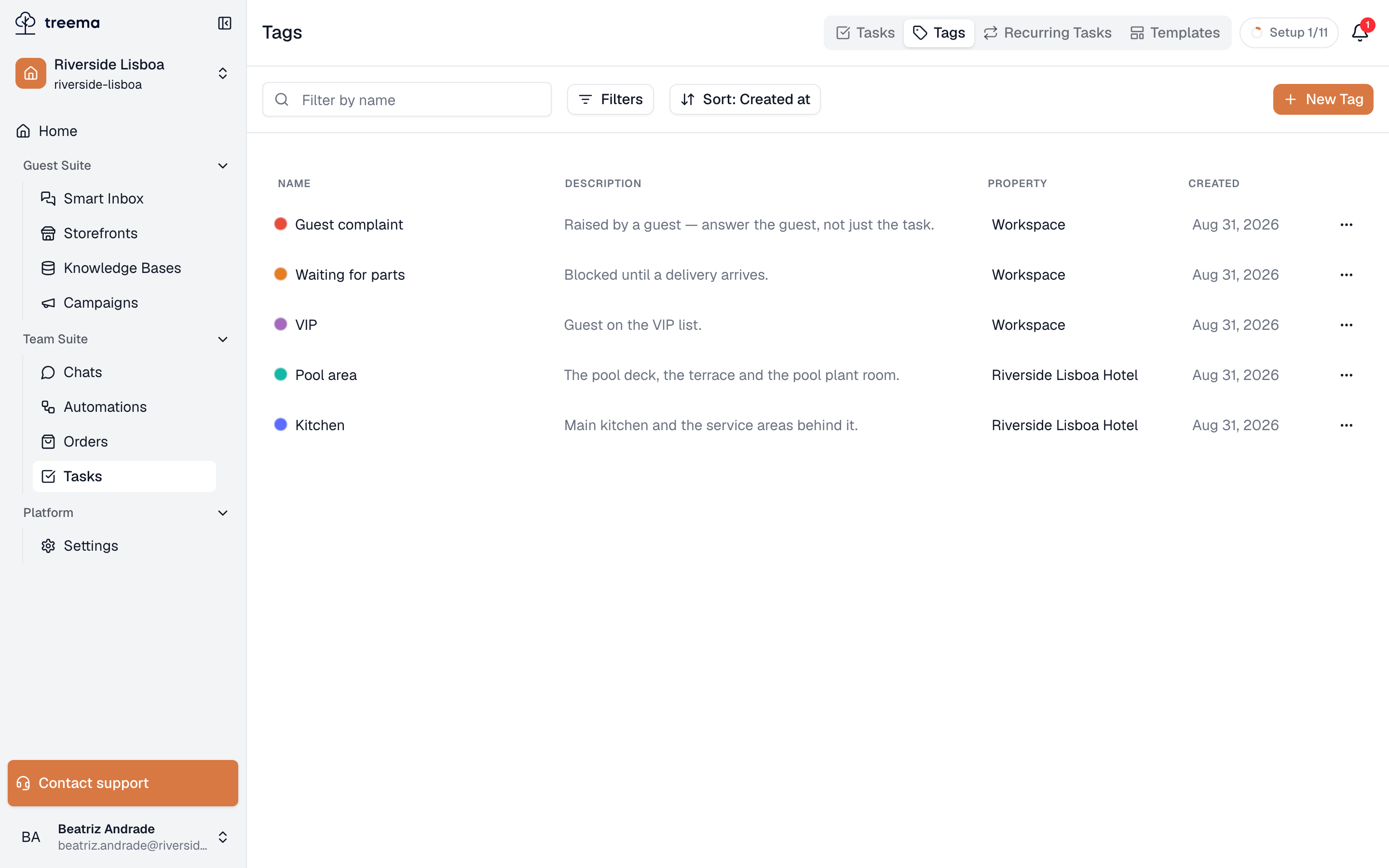
They live under the Tags tab on the Tasks page.
- 1
- 2
- Search, filter by property, sorting, and New Tag
- Every tag with its colour, description and scope
The list
| Column | What it holds |
|---|---|
| Name | The label itself, with its colour. |
| Description | What it's for — No description when nobody wrote one. |
| Property | Which hotel it belongs to, or Workspace. |
| Created | When it was made. |
Above it: search by name, a Properties filter, and sorting by Created at, Name or Property.
Creating one
New Tag asks for four things:
- Name — short. It has to fit in a table row and on a task card.
- Description — optional, but the place to settle what the tag means.
Urgentmeans different things to different shifts until somebody writes it down. - Color — pick from the palette or set your own. Colour is what makes a tag readable at a glance in a long list, so use it deliberately: one colour family per kind of work beats fifteen bright labels.
- Property — which hotel this tag is for, or Workspace for one that isn't tied to a building. If your workspace has a single property, it's filled in for you.
Scope: why a tag isn't offered on a task
A tag belongs either to a property or to the workspace, and a task is only offered the tags that match its own scope. A Lisbon task sees Lisbon's tags; a workspace task sees the workspace ones.
That's deliberate — it keeps one property's vocabulary out of another's — but it's also the answer to "why can't I find my tag": it exists for a different property. In the task form, before a property is chosen, the field says Select property first to add tags.
Prefer workspace tags for language your whole company shares
Urgent, Guest complaint and Waiting for parts mean the same thing in every building — make
them workspace tags once and every property can use them. Keep property tags for what really is
local: a wing, a floor, a piece of equipment only that hotel has.
Using them
On a task, tags are a multi-select in the card and in the create form. In the list, a row shows up
to three and then a +2 for the rest. In the filter panel, Tags narrows the list to tasks
carrying the ones you pick.
Anyone who can work a task can put tags on it — that part needs no special permission, because labelling is part of doing the work. Creating, renaming and deleting tags needs Manages tags.
Editing and deleting
The menu at the end of a row holds Edit and Delete. Editing changes the label everywhere at once — every task that carries the tag shows the new name and colour.
Deleting warns you, and the warning is the important part: the tag is removed from every task that
uses it, and that cannot be undone. If a tag has served its purpose but you'd like the history,
rename it (Pool works 2026) rather than deleting it.