Settings and going live
The storefront's own settings — link, currency, language, time zone, images — and what publishing does.
Everything on this page belongs to the storefront as a whole rather than to any one service. Select Storefront settings at the top of the left column and the Inspector fills with it.
Changes here are saved with Save changes at the bottom, the same as a service.
Name and link
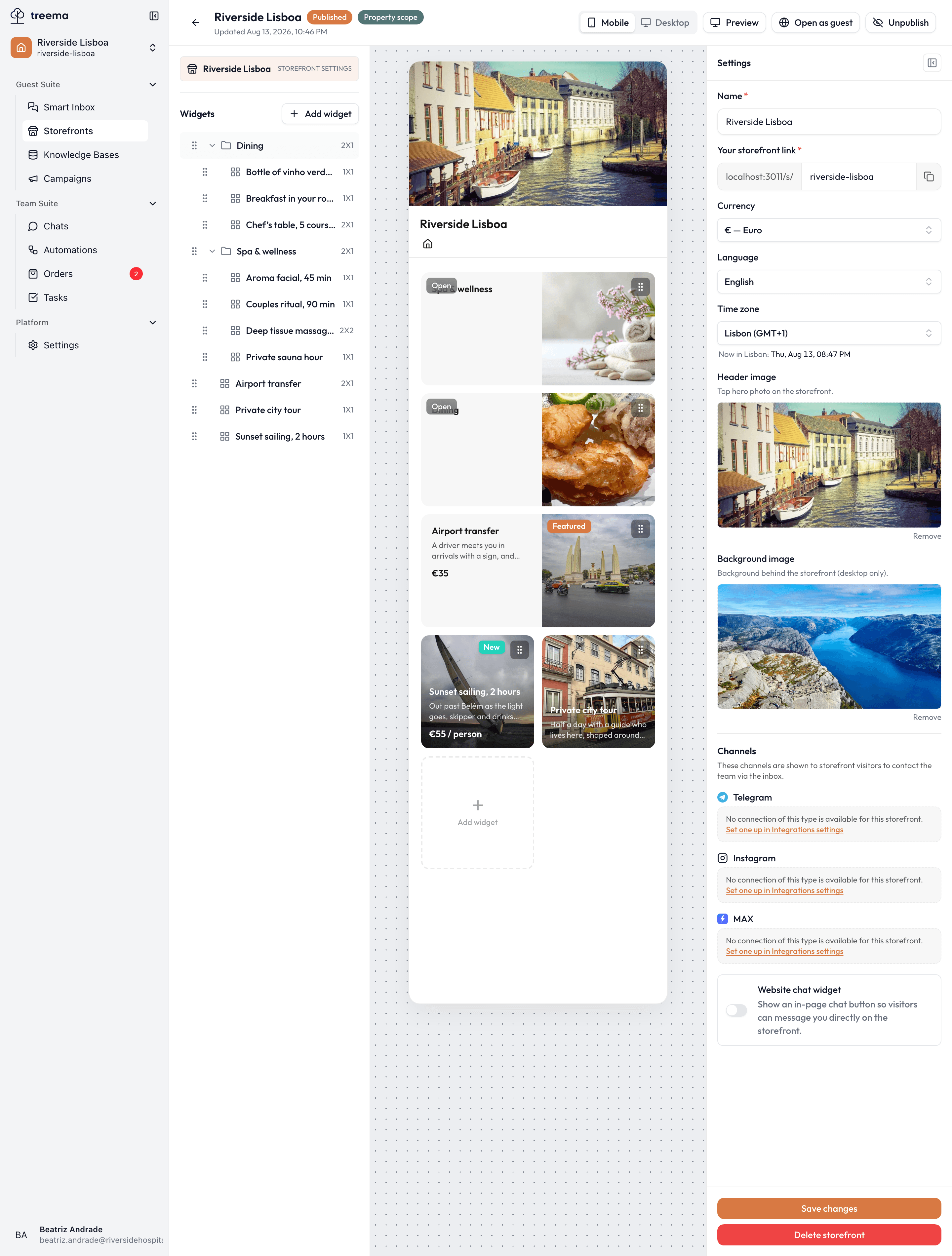
- 1
- Name, link, currency, language, time zone and the two images
Name is what your team sees in the list, and what a guest sees as the title of the page.
Your storefront link is the public address, shown in two parts: the fixed beginning, then the
ending you can edit. Make that ending something a person can read out and type — spa-offers,
riverside-dining — using lowercase letters, digits and dashes; the field says so if you stray. It
also has to be unique across every storefront, and tells you when it isn't: "This URL slug is
already taken".
The button at the end of the field copies the whole link, ready for a QR code or a message.
Changing the ending breaks the old link
The address is how guests reach the page. Change it after your QR codes are printed and those codes lead nowhere. Settle on the ending before you hand the link out.
Currency, language, time zone
Currency is the currency every price on this storefront is shown in.
Language — English or Russian — is the language of the page's own words: the buttons, the labels, the states, the checkout. It does not translate what you wrote. Your service titles and descriptions appear exactly as you typed them, so a Russian-language storefront with English service names will read half and half. If you serve two audiences, the clean answer is two storefronts.
Time zone is what your services' opening hours are measured in — the setting behind every schedule on the availability tab. Under the field, the current time in the chosen zone is shown, which is the quickest way to check you've picked the right one.
Images
Header image is the photograph across the top of the page. It's the first thing a guest sees, and it's worth using a real picture of the place rather than a stock interior. A service with Promo on header switched on takes this spot instead — see the service card.
Background image sits behind the storefront and shows on desktop only, as the field notes. Phones ignore it, so never put anything a guest must read into it.
Both are uploaded by clicking the field, and Remove clears one.
Publishing
The Publish button is in the top bar of the editor, next to the status badge.
- Publish makes the page live at its address. If the storefront has no cards yet, it asks whether you really mean to — an empty page is rarely what you want a guest to land on.
- Unpublish takes it back down, warning first that the public page stops being available immediately. The storefront and its contents are untouched; only the guest's access ends.
Two ways to look before you leap, both in the top bar:
| Button | What it shows | Works when |
|---|---|---|
| Preview | The storefront in a new tab, without the editor around it. | Always, including drafts. |
| Open as guest | The live public page at its real address. | Only once published. |
Preview is the one to use while building. It's the same page a guest gets, minus the editor furniture, and it doesn't require you to publish anything first.
Deleting a storefront
Delete storefront, at the bottom of the settings, removes it and everything on it permanently. It asks first, naming the storefront. If the page is live, unpublishing is almost always what you actually want — it stops guests reaching it and keeps the work.
Where to go next
- Contact channels — letting a guest message your team from the page.
- When a service can be booked — the schedules this page's time zone measures.