Contact channels
Letting a guest message your team from the storefront — messengers and the on-page chat.
Not every guest wants to place an order. Some want to ask whether the massage suits a bad back, or whether the transfer takes a child seat. Channels, at the bottom of the storefront's settings, puts those conversations one tap away — and lands them in Smart Inbox with your other guest messages, rather than in somebody's personal messenger.
Four channels can be offered, and they work in two different ways.
Messengers
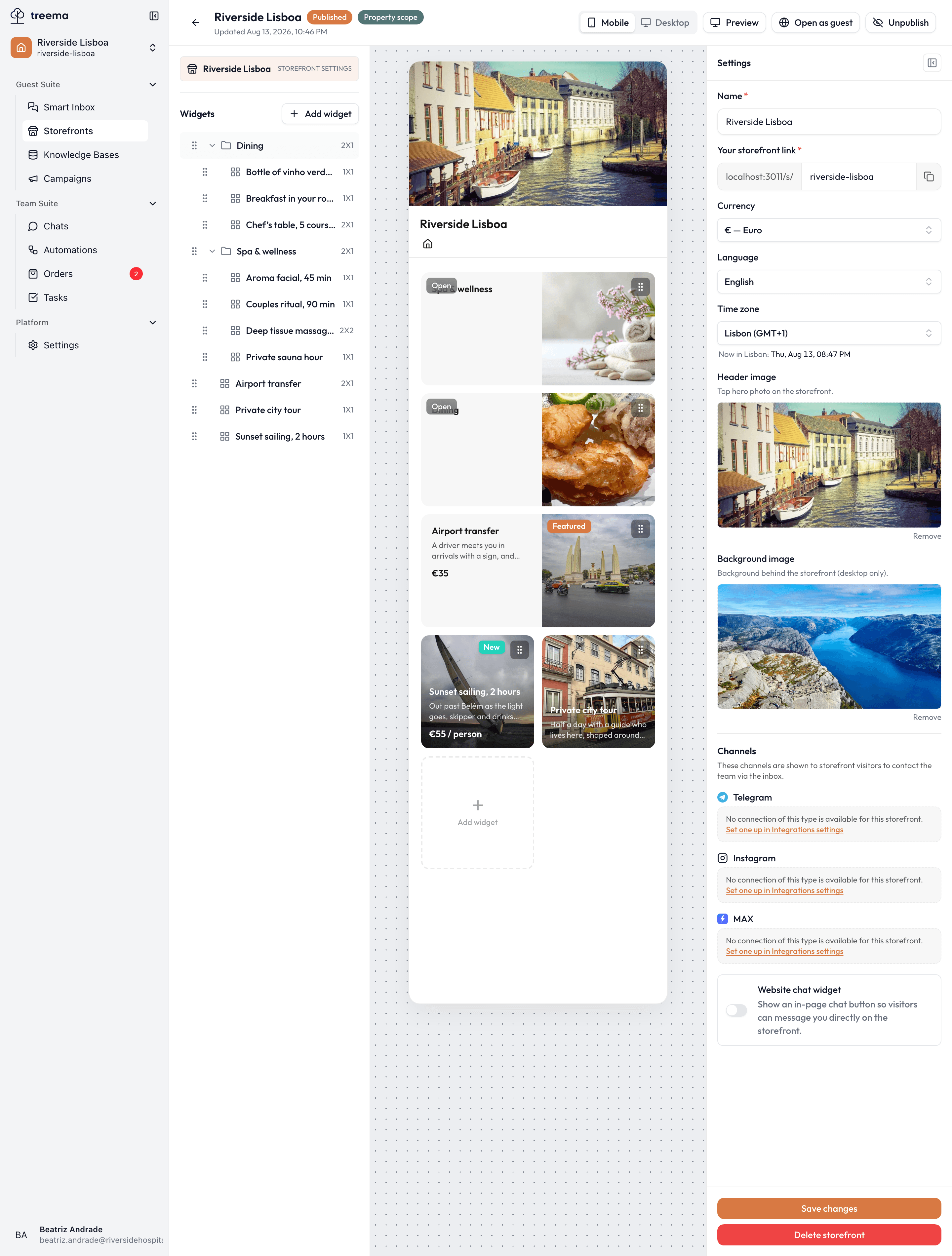
- 1
- The four channels, each either pointing at a connection or switched off
Telegram, Instagram and MAX each show the guest a button that opens a conversation in that app. You don't connect the messenger here — you pick a connection that already exists:
- Connect the messenger once, in Settings → Integrations, where it becomes an inbox other people in the workspace can answer from.
- Come back here and choose it under the channel's name.
If nothing is offered, the field says "No connection of this type is available for this storefront." with a link straight to Integrations. That is the normal state before step 1, not a fault.
A storefront only sees connections from its own scope
A storefront attached to a property offers that property's connections; a workspace-wide storefront offers the workspace's. So a hotel's storefront can't accidentally point guests at another hotel's inbox — and if a connection you expected isn't listed, check which scope it was set up in.
Not connected is what a channel reads when you've chosen nothing, and that's a perfectly good answer: offer only the messengers your team actually watches.
Chat on the page
Website chat widget is different — a plain on/off switch, with nothing to connect. Turn it on and the storefront grows a chat button, so a guest can write to you without leaving the page or installing anything. For a guest browsing from a hotel-room QR code, that's usually the shortest path to a question being answered.
What guests see, and where the messages land
The channels you switch on appear together on the storefront, as the settings note: they're shown to visitors so they can reach the team. Everything sent through them arrives in Smart Inbox, where it's answered like any other conversation.
Two practical notes:
- Offer what you'll answer. A channel nobody watches is worse than no channel — the guest sent a message and heard nothing back.
- Channels are not orders. A question in chat doesn't become an order by itself; if the guest wants the massage, it still has to be ordered on the page or entered by your team.
Channels save with the rest of the settings — Save changes at the bottom of the panel.