What's in Settings
Where the Settings page is, what each tab covers, and which tabs you will see.
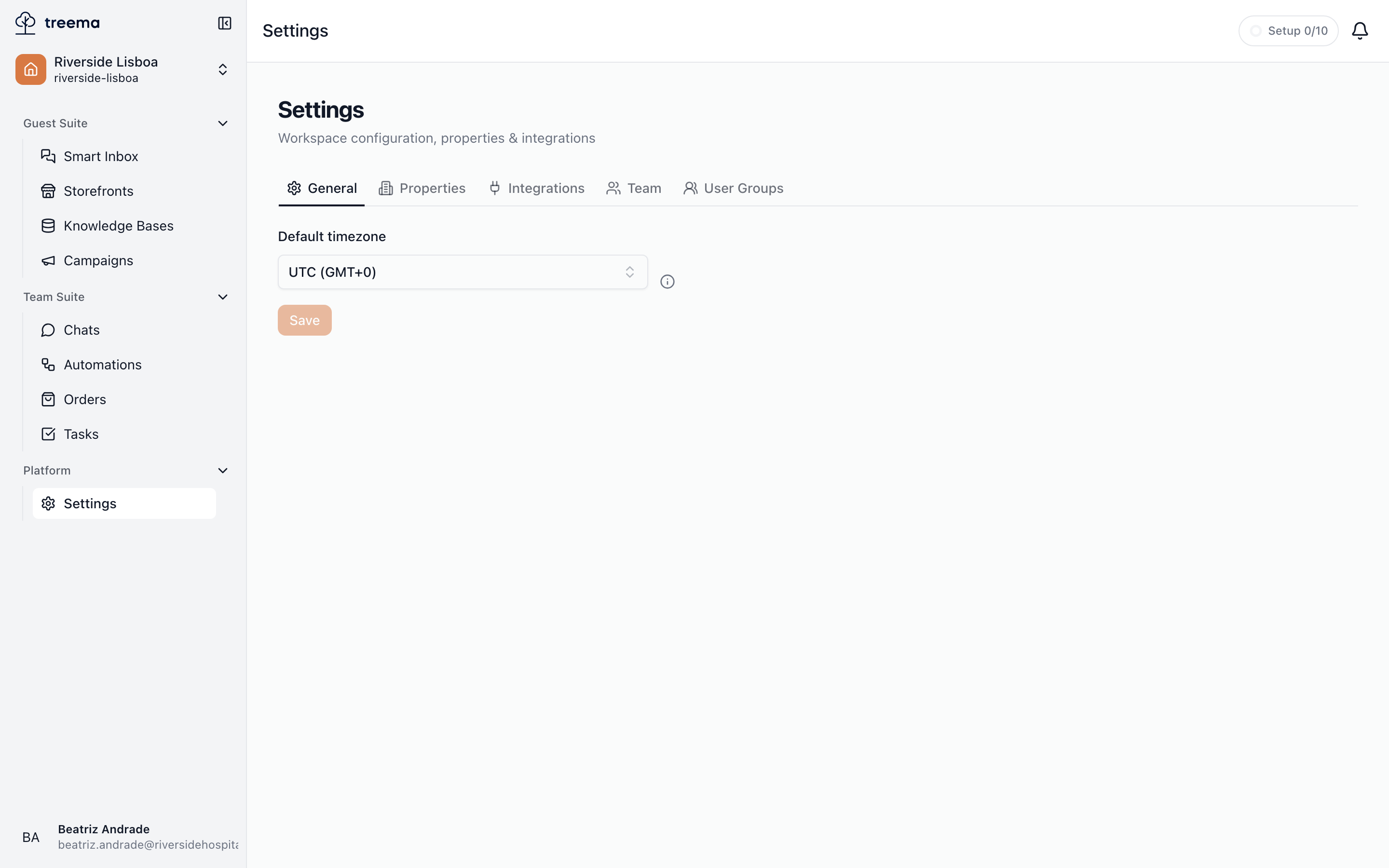
Open Settings from the workspace sidebar, in the Platform group. The page is titled "Settings", with the subtitle "Workspace configuration, properties & integrations" — or, for a property manager who runs one hotel rather than the network, "Hotel “Riverside Lisboa Hotel”: team, roles, locations and integrations".
Everything here applies to one workspace — the one you are currently in. Anything that covers the whole company sits somewhere else entirely: the organization's name, its admins, the prepaid balance and the plan are all in Organization settings.
The tabs
- 1
- 2
- The tabs — you only see the ones you can open
- The selected tab’s content, here the workspace timezone
| Tab | What it covers |
|---|---|
| General | The workspace's default timezone — see General. |
| Properties | The venues this workspace operates — see Properties. |
| Locations | The map of each property — buildings, floors, rooms and grounds — see Locations. |
| Integrations | Messaging and broadcast channels — see Integrations. |
| Team | People in the workspace, their invitations and their roles — see Team. The access change log opens from here. |
| Roles | The sets of permissions people are given — presets and your own — see Roles. |
| User Groups | Named groups of people used for assignment — see User groups. |
Locations appears only when it is enabled for your workspace. If your team maps rooms and floors but the tab isn't there, ask support@treema.ai.
One page in this section is not a tab at all: your account and language covers the menu with your name on it, at the bottom of the sidebar.
Switching tabs updates the address in your browser, so you can bookmark a tab or send someone a link that opens straight to it.
Which tabs you see
The tab strip only shows the tabs you can open. Seeing fewer tabs than a colleague does is not a fault — it means one of them isn't yours to manage.
- Workspace owners and admins see all of them.
- Everyone else sees the tabs their roles open. Each tab answers to a permission:
| Tab | Opens with |
|---|---|
| General | Sees workspace settings — a workspace role. |
| Properties, Locations | Sees property settings in at least one property; Creates properties opens Properties too. |
| Integrations | Sees property settings or Sees workspace settings. |
| Team, Roles | Sees the team in at least one property. |
| User Groups | Sees property settings, or either Manages departments permission. |
A tab opened by a property permission shows that property's things only. This is what makes a property manager possible: someone holding the Hotel manager preset in one hotel gets Properties, Locations, Integrations, Team, Roles and User Groups for that hotel — invites people to it, manages its team and its roles, edits its details — and sees nothing of the other hotels or of the workspace's own settings.
If none of your roles opens a tab, the Settings entry does not appear in your sidebar. To get one, ask your workspace owner or an admin.
Two different settings pages
"Settings" (this page) and "Organization settings" are separate. If you are looking for the balance, the plan, payment methods or the list of organization admins, you want Organization settings instead.