Locations
What a location is, how buildings, floors, rooms and outside areas fit together, and where to find them.
A location is a place inside one of your properties: a guest room, a floor, the lobby, the pool terrace, the car park. Map a property once and every task can say exactly where the work is — and every room can show what has already been done in it.
Locations belong to one property. A workspace with three hotels has three separate structures, and you work on one at a time.
Where to find them
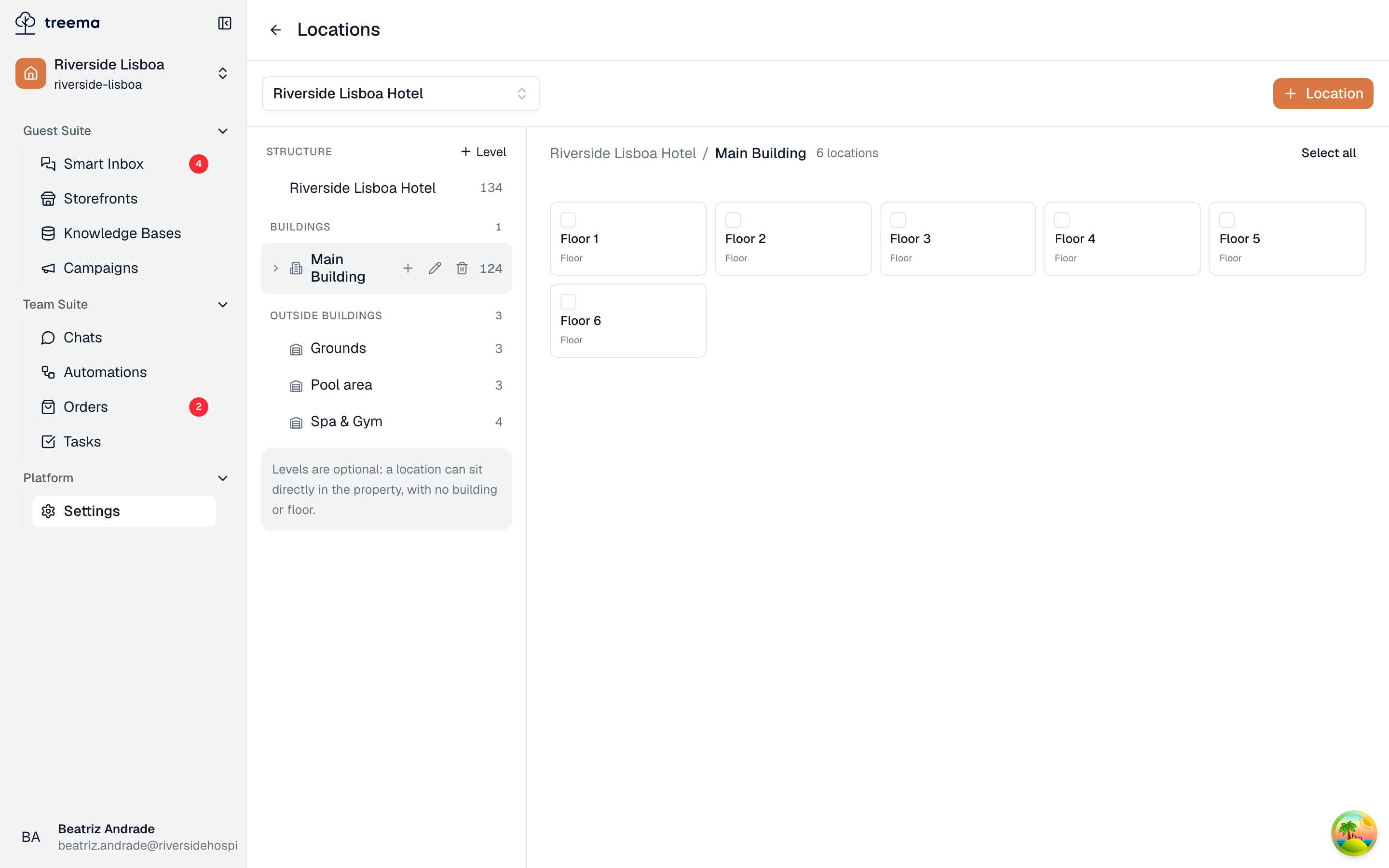
Open Settings from the workspace sidebar and pick the Locations tab. The picker at the top of the page chooses which property you are looking at; switching it switches the whole map.
- 1
- 2
- 3
- The property being mapped, and the Location button that adds to it
- Structure — buildings with their floors, and outside areas, each with a count
- What is inside the selected level, one tile per location
The five kinds of location
| Kind | What it is | Where it sits |
|---|---|---|
| Building | The top level of a structure. | Directly in the property. |
| Floor | A floor of a building. | In a building. |
| Guest room | A room you sell. | On a floor, or directly in a building. |
| Space | Anything else a person walks into — lobby, storage, treatment room, fire escape. | On a floor, in a building, or in an outside area. |
| Outside building | Grounds that hold spaces of their own: parking, pool, garden. | Directly in the property. |
The two containers at the top — Building and Outside building — are what the structure list is grouped by, under the headings Buildings and Outside buildings.
Levels are optional
Nothing forces a location to the bottom of a deep tree. A location can sit directly in the property with no building and no floor above it, which is the right shape for a guesthouse whose "structure" is eight rooms and a garden. The page says so itself, under the structure list: Levels are optional: a location can sit directly in the property, with no building or floor.
Use as much of the hierarchy as your property actually has, and no more.
Who can see and change them
Seeing the Locations tab needs Sees property settings in at least one property; adding, renaming, moving and removing locations needs Changes property details and locations in that property, or workspace owner or admin. With the first permission alone the map is a read-only picture: no Location button, and no pencil or bin on anything. See Roles for how permissions are given.
The property picker only offers the properties you have access to, so two people on the same workspace can see different sets of maps.
Where to go next
- Map your property — the fastest way to get a whole building in place.
- Adding and editing locations — the dialog, room-number ranges, renaming and removing.
- Finding your way around — drilling into the tree, a location's card, and acting on several at once.
- Locations on tasks — attaching them to work, and filtering the list by them.
- Mapping PMS rooms — matching the room list of a connected PMS to your guest rooms, and keeping the two in step.