Roles
What a role is, the preset roles, building your own, and what a property manager can and cannot put in one.
A role is a named set of permissions — "Front desk", "Housekeeping", "Night auditor". People are not given permissions one by one; they are given roles, on the Team tab, and a role is given somewhere: in one property, in every property, or at workspace level. The Roles tab is where the roles themselves live: the presets that come with the product, and the ones you build.
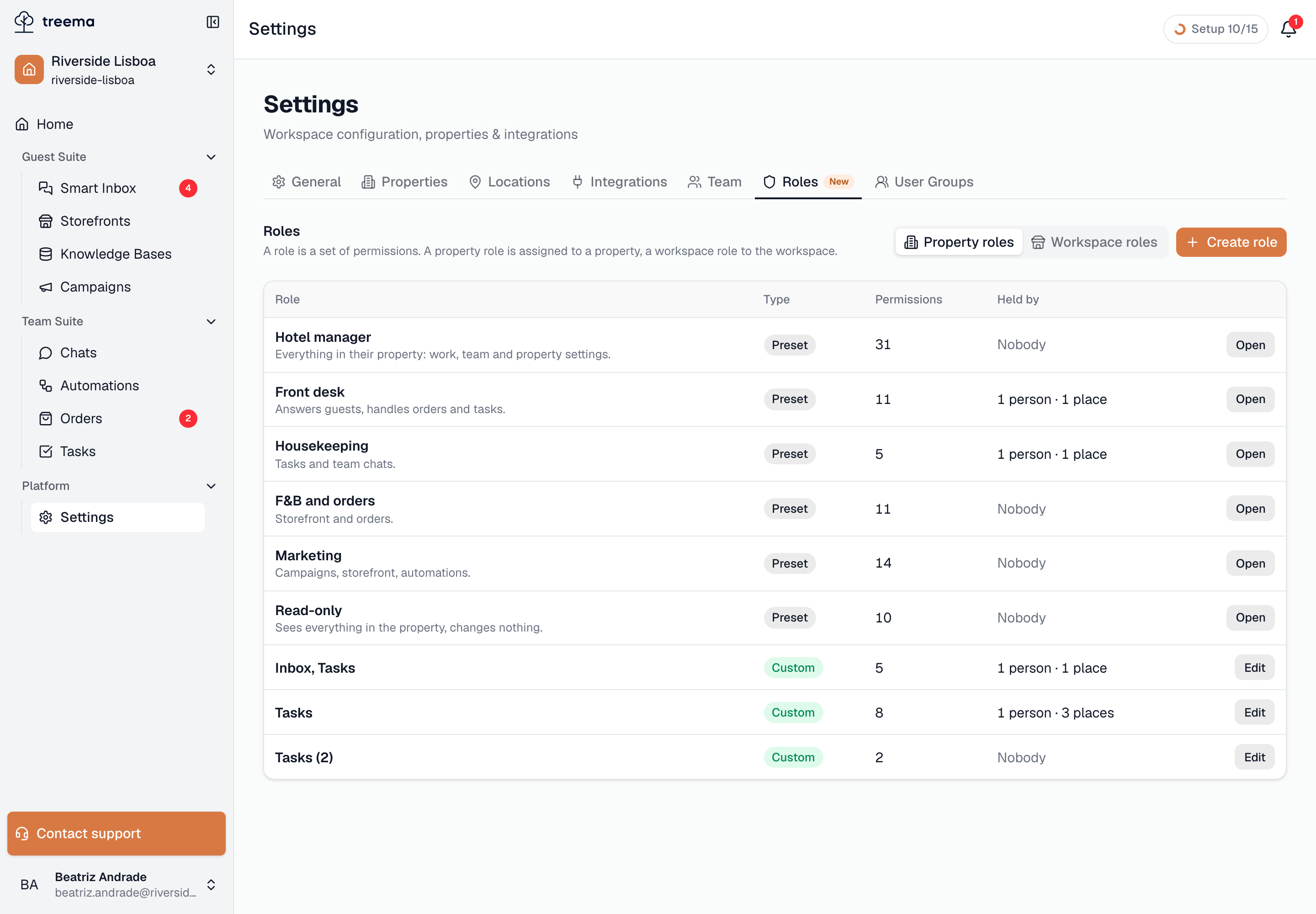
The tab is headed "Roles", with the one-line summary of the model: "A role is a set of permissions. A property role is assigned to a property, a workspace role to the workspace."
Two kinds of role
- A property role is about one hotel's things — its conversations, its tasks, its storefront, its team. It is assigned to a property, or to All properties, including new ones, in which case it reaches every hotel the workspace has now and every one added later.
- A workspace role is about the things that belong to the workspace rather than to any one hotel — the workspace storefront, workspace-wide channels, shared templates, the workspace's own settings and billing. It is assigned at workspace level.
The two never mix: a property role, even in all properties, does not reach workspace-level objects, and a workspace role does not reach any hotel's. Someone who needs both holds two roles. Roles add up, so a person can hold several in the same property too.
Owners and admins of the workspace hold no roles at all — full access needs none — and switch the list between Property roles and Workspace roles at the top. A property manager sees property roles only.
The list
- 1
- Presets first, then your own roles — type, permission count, and who holds each
| Column | What it shows |
|---|---|
| Role | The name and, under it, the description. |
| Type | Preset — comes with the product, cannot be changed. Custom — built in this workspace. Role of “Riverside Lisboa Hotel” — a role a property manager built for their own hotel. |
| Permissions | How many the role grants. |
| Assignments | "n people · n places", or "None". |
Edit at the end of the row opens the editor; Open opens a role you can look at but not change. Create role starts a new one.
The preset roles
Six roles come with every workspace. All of them are property roles; a preset cannot be changed, but any of them can be copied and adjusted (see below).
| Preset | Who it is for | What it grants |
|---|---|---|
| Hotel manager | The person who runs a hotel | Every property-level permission, including the sensitive ones: inviting people, changing roles, deleting tasks, sending campaigns, connecting integrations, editing hotel settings. |
| Front desk | Reception | Sees, replies to and assigns guest conversations; sees and creates tasks; reads and writes in chats; sees the knowledge base and the storefront; sees and handles orders. |
| Housekeeping | Floor staff | Sees and creates tasks; reads and writes in chats; sees the knowledge base. |
| F&B and orders | Restaurant, bar, room service | Sees and replies to guest conversations; sees and creates tasks; reads and writes in chats; sees the knowledge base; sees and changes the storefront; sees and handles orders. |
| Marketing | Campaigns and content | Sees guest conversations; sees and creates tasks; reads and writes in chats; sees and edits the knowledge base; sees and changes the storefront; sees orders; sees and configures automations; sees and sends campaigns. |
| Read-only | Auditors, observers, the head office | Sees everything in the property — conversations, tasks, chats, the knowledge base, the storefront, orders, automations, campaigns, the team, the property settings — and changes nothing. |
"Creates tasks" here means the permission Creates tasks and works on their own: creating tasks, updating the ones assigned to you, and commenting. Editing anybody's task, deleting tasks, and managing tags, checklists, templates and recurring tasks are separate permissions that only Hotel manager holds among the presets.
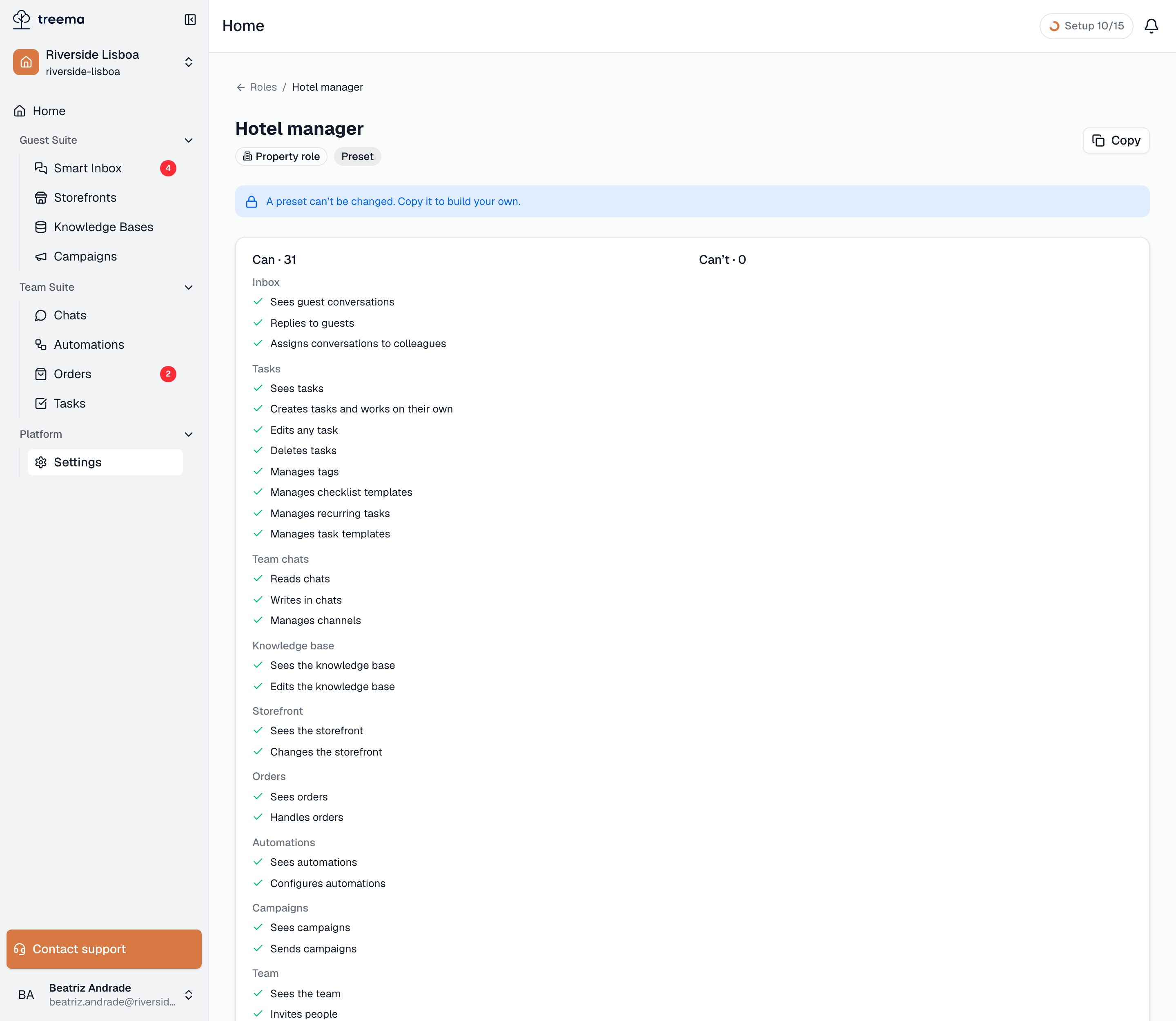
Opening a preset shows it read-only — "A preset can’t be changed. Copy it to build your own." — as two columns, Can · n and Can’t · n, grouped by module, so you can see at a glance what a Front desk person will and will not be able to do. Copy at the top opens the editor with the same permissions and the name suffixed "(copy)".
- 1
- Copy — start your own role from this preset
Building a role
Create role, or Edit on a role of yours, opens the editor. It is a desktop screen; on a phone a role can be reviewed but not changed — "Editing roles is available on a desktop. Here you can review the role."
- 1
- 2
- 3
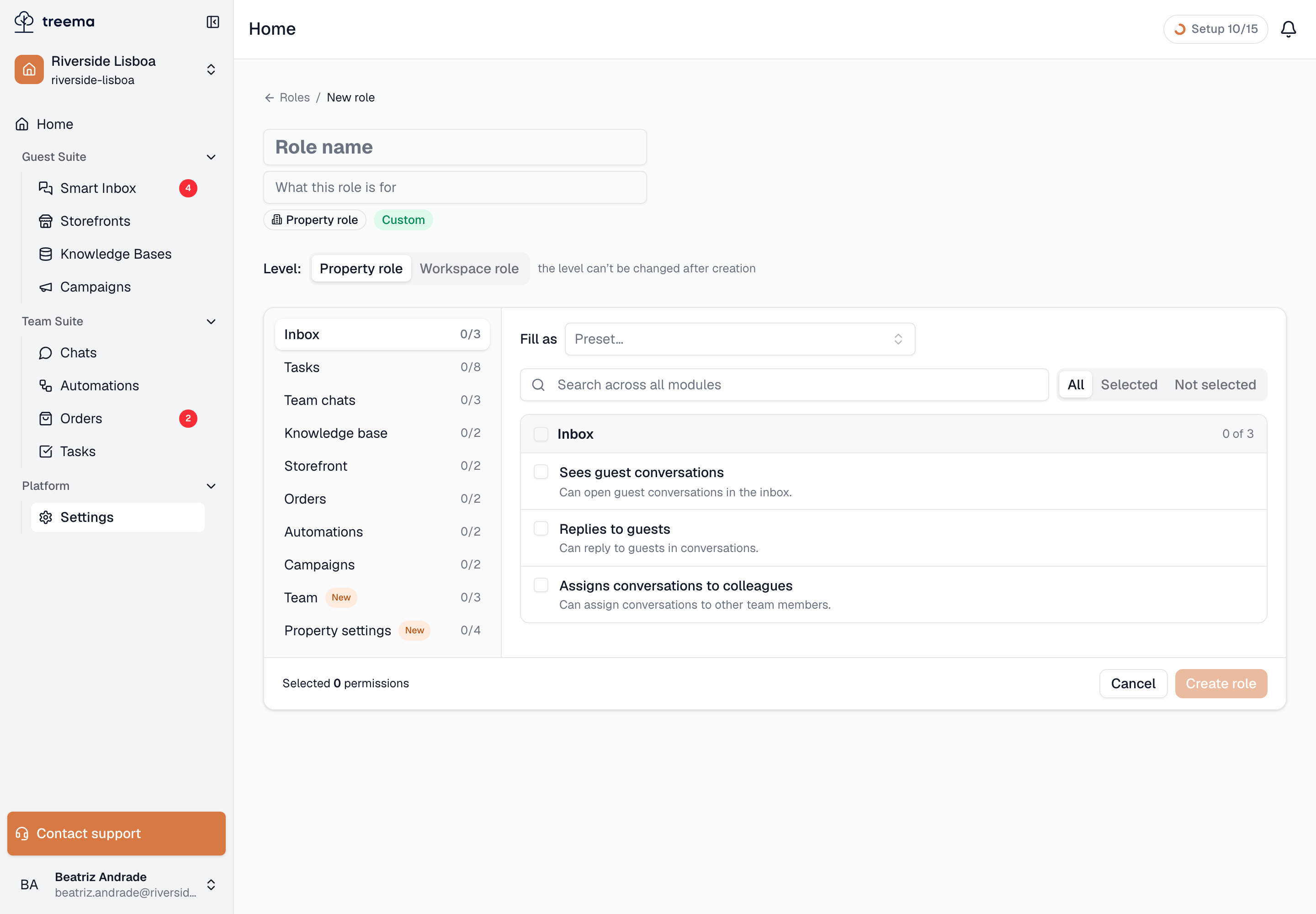
- Modules — selected/total for each, a New badge, and a dot when a sensitive permission is selected
- The chosen module’s permissions — one checkbox each, sensitive ones in their own group
- The footer — how many permissions are selected, then Create role
At the top, the Role name (up to 60 characters) and What this role is for (up to 200). For a new role, owners and admins pick the Level — Property role or Workspace role — and "the level can’t be changed after creation". Fill as lets you start a property role from a preset instead of from nothing.
Below, two panels:
- Modules, on the left — Inbox, Tasks, Team chats, Knowledge base, Storefront, Orders, Automations, Campaigns, Team, Property settings (or Workspace settings for a workspace role) — each with "selected/total", a New badge on a module whose permissions are new to this version, and a small dot when a sensitive permission in it is selected. Click one to see its permissions.
- The permissions of the chosen module, on the right, one checkbox per permission with a one-line meaning under it. The module's header checkbox selects or clears the whole module. Sensitive permissions sit in their own highlighted group, Sensitive actions · Module. The search box — "Search across all modules" — looks through every module at once, and All / Selected / Not selected narrows the list.
Some permissions need others: replying to guests needs seeing conversations first, deleting tasks needs seeing tasks. Tick the higher one and the ones it needs are ticked with it, marked "Added automatically: needed for Replies to guests". Untick a permission others depend on and they go with it.
The footer keeps score. For a new role, "Selected n permissions" and Create role. For an existing one, "Changes: +a / −r permissions · affects n people — applies immediately, no need to sign in again" and Save; Show changes lists exactly which permissions are being added and removed. The change reaches everyone who holds the role the moment it is saved.
A role needs a name and at least one permission — "Select at least one permission" otherwise.
Sensitive permissions
Eight permissions are marked Sensitive, because handing them out is a decision rather than a convenience: Deletes tasks, Sends campaigns, Invites people, Changes roles and removes access, Connects property integrations, Connects workspace integrations, Creates properties and Manages billing and plan. They are highlighted in the editor, flagged in the invite review and badged on a member's page, so they are never granted unnoticed. Hotel manager is the only preset that holds any.
Deleting a role
Delete in the editor removes a role nobody holds. While people or pending invitations still have it, the button is disabled with "Assigned to n people — remove the role from them first": take it off them on the Team tab, then delete. Presets cannot be deleted.
What a property manager can do here
Someone who holds Changes roles and removes access in a property — a Hotel manager, usually — can build roles for that property. The tab tells them the boundaries: "You can create roles for “Riverside Lisboa Hotel” — only from the permissions you hold there. Presets and roles created by a workspace admin are open to view and copy."
- The button reads Create role for “Riverside Lisboa Hotel”, and the roles they create are typed Role of “Riverside Lisboa Hotel” — assignable in that hotel and nowhere else.
- The editor offers only the permissions they hold there themselves; the rest are shown greyed with "You don’t have this permission in “…” — it can’t be granted."
- A role a workspace admin built opens read-only: "This role was created by a workspace administrator — only they can change it." Another hotel's role likewise: "This role belongs to another property — only its managers or a workspace administrator can change it."
- Workspace roles are not shown to them at all.
Every permission
For reference, everything a role can contain, by module. Level says whether the permission exists in a property role, a workspace role, or both — a permission that exists at both levels is two separate grants: in a property role it acts on that hotel's things, in a workspace role on the workspace's.
| Module | Permission | Meaning | Level |
|---|---|---|---|
| Inbox | Sees guest conversations | Can open guest conversations in the inbox. | both |
| Inbox | Replies to guests | Can reply to guests in conversations. | both |
| Inbox | Assigns conversations to colleagues | Can assign conversations to other team members. | both |
| Tasks | Sees tasks | Can view tasks, tags, checklists, recurring tasks and task templates. | both |
| Tasks | Creates tasks and works on their own | Can create tasks, update the ones assigned to them and comment. | both |
| Tasks | Edits any task | Can edit every field of any task. | both |
| Tasks | Deletes tasks (sensitive) | Can delete tasks. | both |
| Tasks | Manages tags | Can create, rename and delete tags. | both |
| Tasks | Manages checklist templates | Can create, edit, duplicate and delete checklist templates. | both |
| Tasks | Manages recurring tasks | Can create, edit and delete recurring tasks. | both |
| Tasks | Manages task templates | Can create, edit and delete task templates. | both |
| Team chats | Reads chats | Can read the team chats. | both |
| Team chats | Writes in chats | Can send messages in the team chats. | both |
| Team chats | Manages channels | Can create and configure chat channels. | both |
| Knowledge base | Sees the knowledge base | Can read knowledge base documents. | both |
| Knowledge base | Edits the knowledge base | Can add and edit knowledge base documents. | both |
| Storefront | Sees the storefront | Can view the storefront and its products. | both |
| Storefront | Changes the storefront | Can edit the storefront and its products. | both |
| Orders | Sees orders | Can view guest orders. | both |
| Orders | Handles orders | Can update the status of guest orders. | both |
| Automations | Sees automations | Can view automations. | both |
| Automations | Configures automations | Can create and edit automations. | both |
| Campaigns | Sees campaigns | Can view campaigns and their results. | both |
| Campaigns | Sends campaigns (sensitive) | Can create and send campaigns. | both |
| Team | Sees the team | Can view team members and their access. | property |
| Team | Invites people (sensitive) | Can invite new members to the property. | property |
| Team | Changes roles and removes access (sensitive) | Can change members' roles and remove their access. | property |
| Property settings | Sees property settings | Can view the property's settings, integrations and departments. | property |
| Property settings | Changes property details and locations | Can edit the property's details and locations. | property |
| Property settings | Connects property integrations (sensitive) | Can connect and configure the property's integrations. | property |
| Property settings | Manages departments | Can create and edit the property's departments. | property |
| Workspace settings | Sees workspace settings | Can view the workspace's general settings and integrations. | workspace |
| Workspace settings | Changes general workspace settings | Can edit the workspace's general settings. | workspace |
| Workspace settings | Connects workspace integrations (sensitive) | Can connect and configure workspace-wide integrations. | workspace |
| Workspace settings | Manages workspace departments | Can create and edit workspace-wide departments. | workspace |
| Workspace settings | Creates properties (sensitive) | Can add new properties to the workspace. | workspace |
| Workspace settings | Manages billing and plan (sensitive) | Can manage payment details and the plan. | workspace |
Only modules switched on for your workspace appear in the editor, so the list there may be shorter than this one.