From a conversation to a task
When a guest's message means work rather than an answer — turning it into a task that carries the thread with it.
Plenty of guest messages are not questions. "The shower in 512 is cold" needs a plumber, not a sentence. The inbox has one move for that, and it exists so nobody has to retype the guest's words into another screen.
Turning a message into a task
Hover a guest's message and open its ⋯ menu, then Convert to Task.
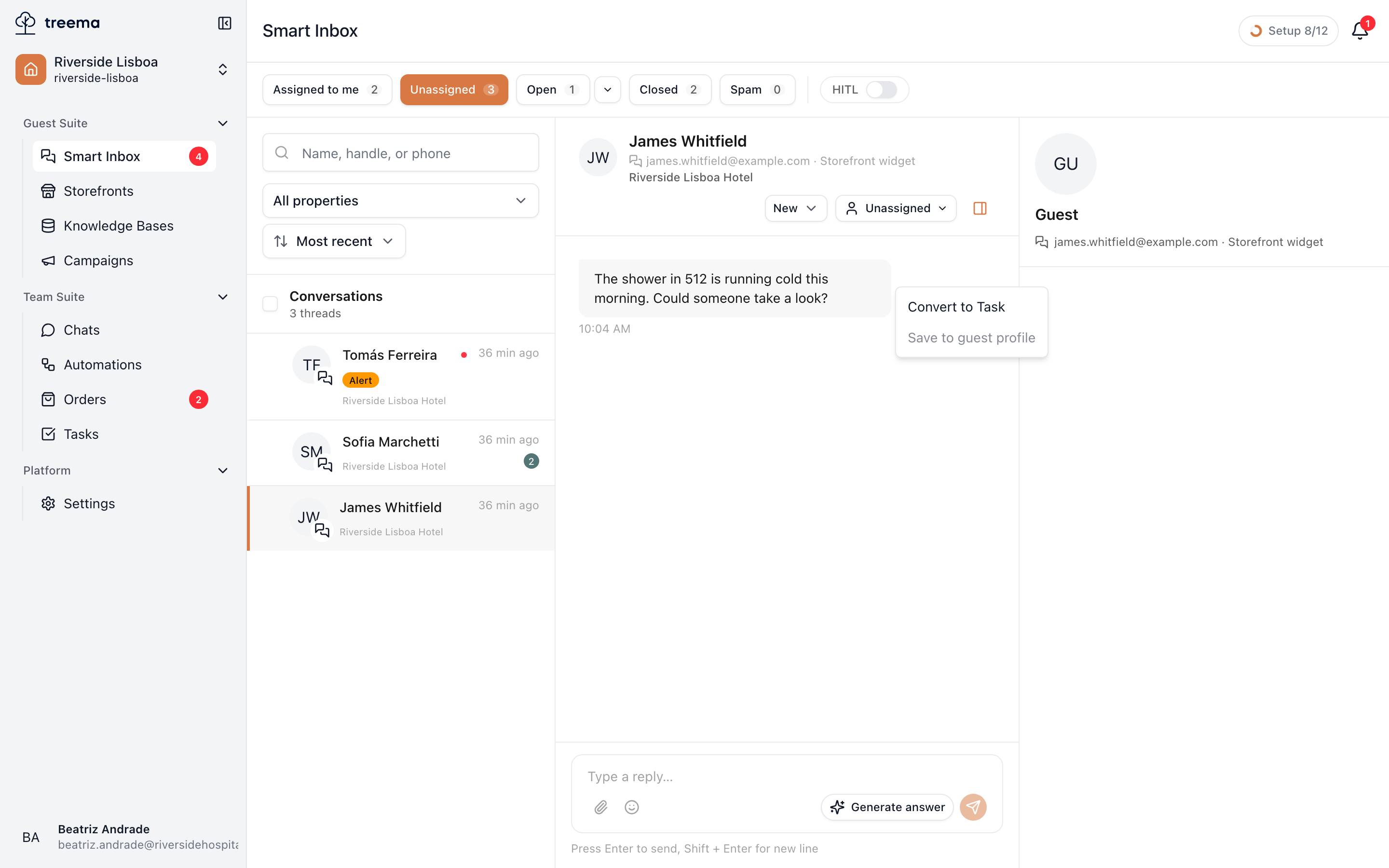
- 1
- Convert to Task, on the guest message that describes the work
The usual create-task form opens, already filled in:
- Title — the guest's name and what they wanted.
- Description — a summary of the conversation, so the person doing the work reads the context without having inbox access.
- Property — the one this conversation belongs to.
Everything is editable before you create it: give it an owner, a due date, a checklist. When you create it, a confirmation says the task was created and linked to the conversation.
The link works both ways
That link is the point of doing it this way rather than copying text:
- From the task, a From guest conversation line under the header opens this thread — so whoever fixes the shower can read exactly what the guest said. (It shows only for people who have access to the inbox; see the task card.)
- From the conversation, you carry on talking to the guest as normal.
The two stay separate on purpose. Closing the task doesn't answer the guest, and answering the guest doesn't close the task. Someone has to do both — usually the same person, one after the other.
Tell the guest what you did, then convert
The pattern that works: reply first ("I've sent maintenance up, they'll be there within the hour"), then convert the message into the task. The guest gets an answer immediately, and the work has a record — instead of a task nobody outside the inbox can explain.
When the assistant offers first
If the assistant recognised the work itself, a suggested-task card is already sitting under the message with a title and a team filled in — accept, adjust or dismiss it. Same result, less typing; what the assistant does covers it.