What the assistant does
How conversations are read and flagged, the drafts it offers, the tasks it suggests, and where it stops.
An assistant reads the inbox alongside your team. It is not there to replace the person answering — it is there to make sure nothing waits unseen, and to save typing on the answers you have given a hundred times.
Four things it does, in the order you'll meet them.
1. It reads every incoming message
Each guest message is read as it arrives, and what it finds becomes something you can filter by:
- Intent — what they want: a booking, an inquiry, a service request, a complaint, feedback.
- Sentiment — how they sound. A clearly negative message shows a coloured dot on its row in the list.
You don't have to act on either. Their value is on a busy morning: "show me the complaints" and "show me the unhappy ones" become one click each in the filters.
2. It raises an alert when a person is needed
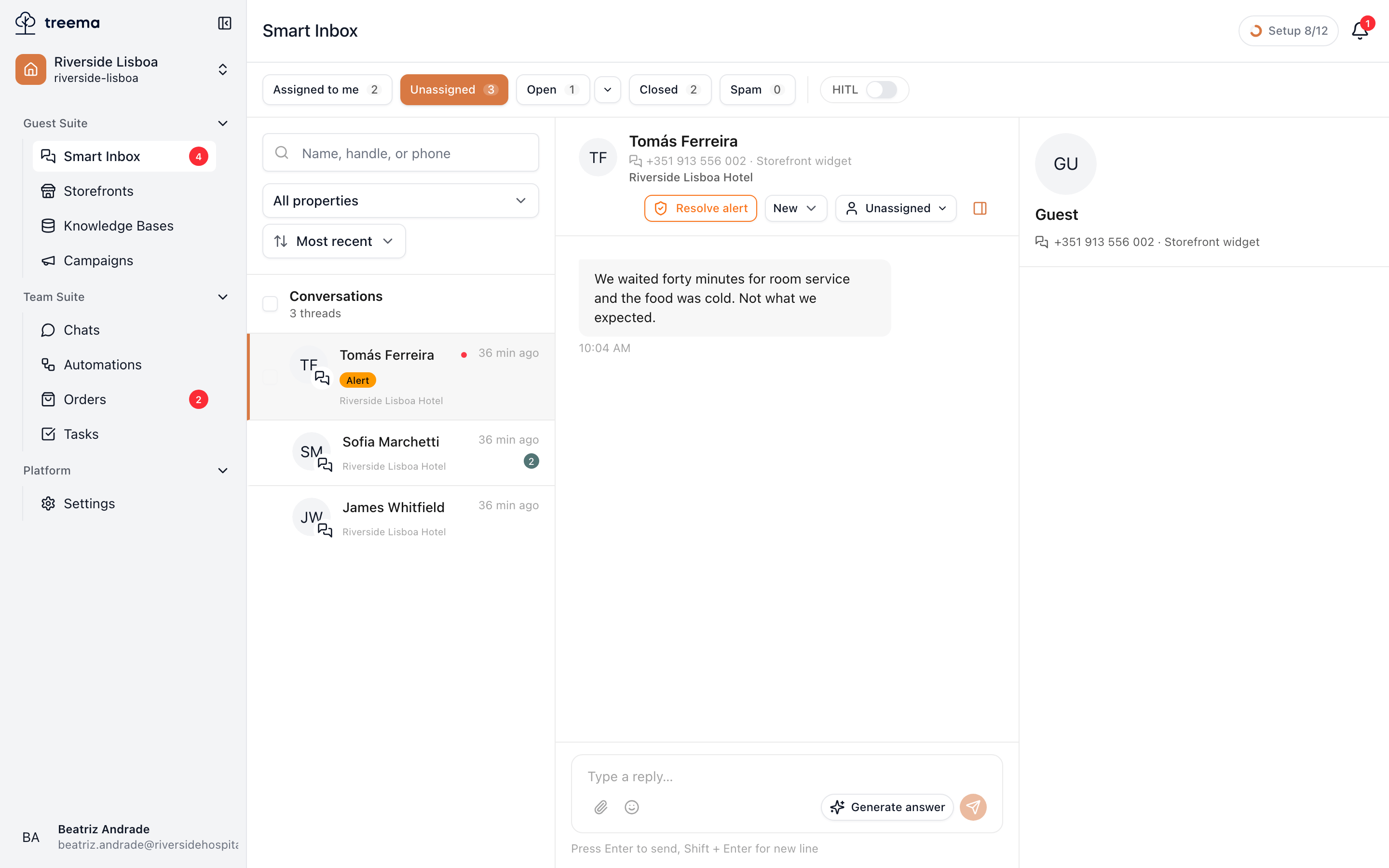
When a message looks like it needs a human now, the conversation is flagged: an Alert badge appears on its row in the queue, and the Alerts filter can narrow the list to nothing else.
- 1
- 2
- The flagged conversation, marked in the queue
- Resolve alert — press it once the situation is in hand
Open the conversation and the header gains a Resolve alert button. Press it once the situation is in hand and the flag goes.
Resolving an alert is not the same as answering the guest
The alert says "somebody look at this". Resolving it says "somebody has". If the guest writes again and it still reads as urgent, the alert comes back — the tooltip on the button says so. Don't resolve alerts to clean up the badge; resolve them when the conversation is genuinely under control.
3. It drafts replies, and never sends them for you
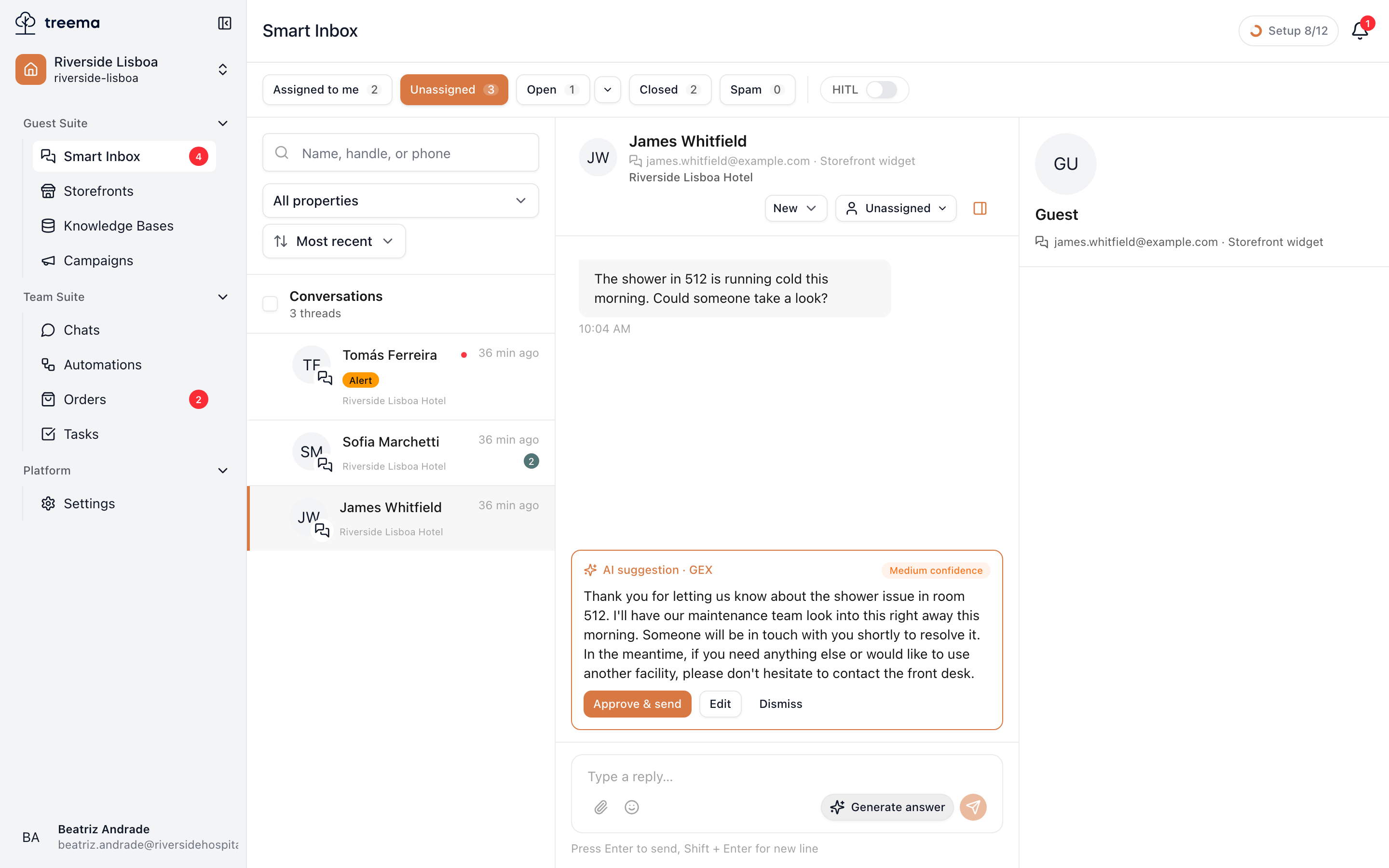
When the last message in a thread is the guest's, the composer offers Generate answer. The draft appears above the box you type in:
- 1
- The proposed reply, its confidence, and the sources it used
- A confidence mark — high, medium or low. Low confidence is not a reason to panic, it is a reason to read it twice.
- Sources, when it used your knowledge base — small chips naming what it read, so you can tell which facts came from a document of yours.
- Three buttons: Approve & send posts it as-is, Edit drops it into the composer for you to change, Dismiss throws it away.
The draft is never sent automatically. That decision is a person's, every time.
Read every draft before approving it
A draft is written from what the assistant found; it does not know what you promised this guest on the telephone this morning. Approving without reading is how a hotel promises a late checkout it can't give.
4. It suggests tasks
When a message describes work rather than a question — a broken tap, a request for extra towels — a card appears in the thread proposing a task: a title, a team, sometimes a priority.
Create makes it. Edit lets you fix the title or pick a different team first. Dismiss means "not work". The task lands in Tasks like any other, and carries a link back to this conversation.
Where the assistant stops
If your workspace has the assistant answering guests on its own, it stops the moment a person owns the conversation. Assigning it to yourself is the switch — from then on the guest hears from you, not from it.
That is worth knowing in both directions: take the conversation before you start typing, and don't leave a delicate thread unassigned if you don't want an automatic answer arriving in the middle of it.
Messages the assistant sent are marked in the thread, so when you scroll back you can always tell which promises were made by a person.