Finding your way around
Drilling through the structure, what a location's card shows, a room's status from the PMS, and acting on several locations at once.
The map has two halves that work together: the Structure list on the left is the skeleton, and the area beside it shows what is inside whatever you picked there.
The structure list
The list starts with the property itself, carrying the total number of locations in it, and then splits into two groups:
- Buildings — each building, with the count of what is inside it. A building with floors has a chevron that expands them.
- Outside buildings — the grounds: parking, pool, garden, each with its own count. This heading appears once the property has at least one of them.
Clicking a row shows its contents on the right. Hovering one reveals the actions it allows: + to add inside it, the pencil to rename it, the bin to remove it. + Level above the list starts a new building.
The level you are looking at
- 1
- 2
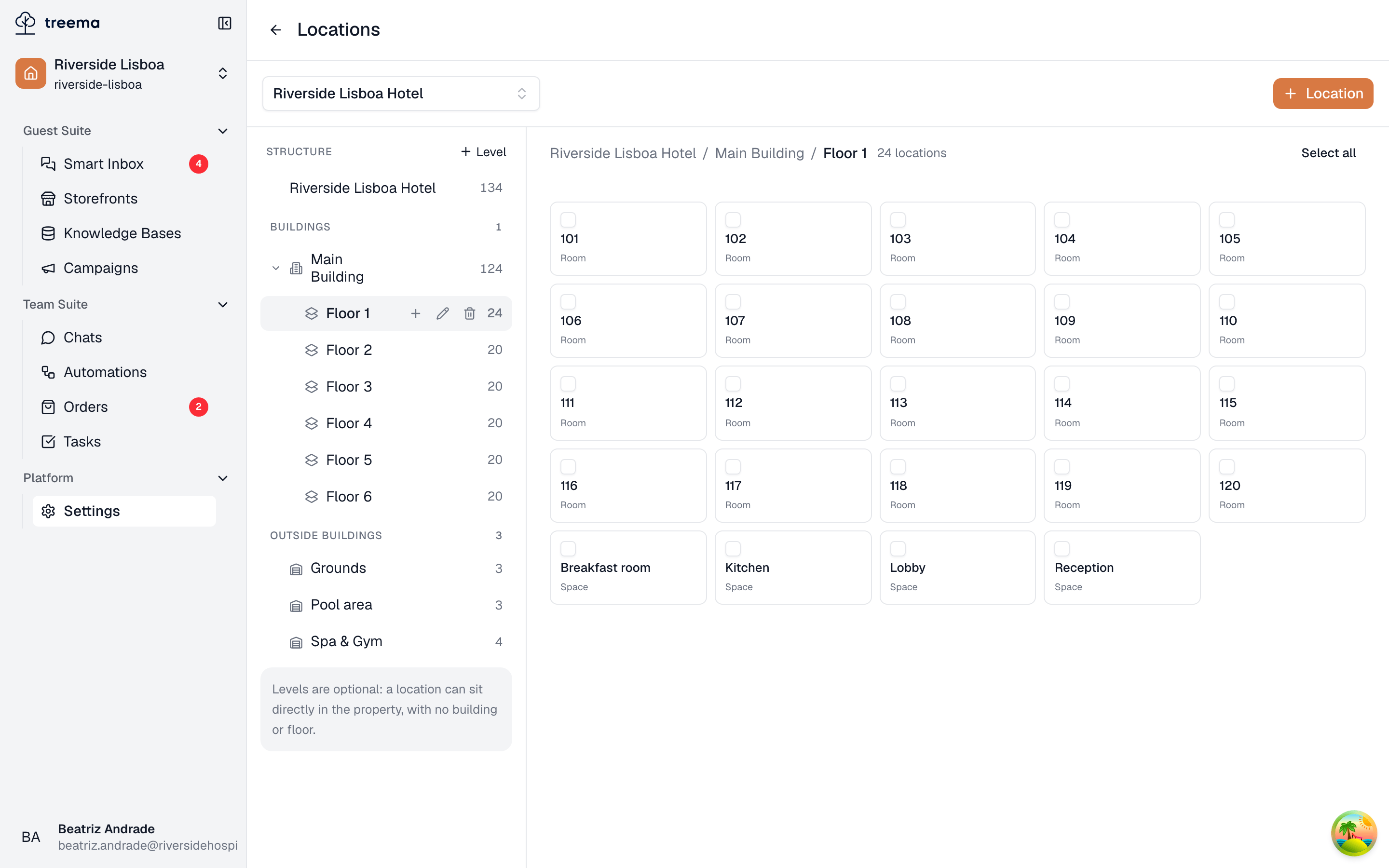
- The trail back up, and how many locations this level holds
- One tile per location — its name, and what kind it is
What the area holds depends on what is selected in the structure list:
| Selected | Tiles |
|---|---|
| The property | Every room and space in it, however deep — the quickest way to find one by name. |
| A building | Its floors, plus anything sitting in the building with no floor. |
| A floor | The rooms and spaces on it. |
| An outside area | The spaces in it. |
Each tile shows a name and, under it, the kind of location it is. A guest room with a room type shows the type muted to the right of its name. What a click does depends on which kind:
- A guest room or a space opens its card: there is nothing below it.
- A floor, building or outside area goes one level deeper, and the trail above grows a step.
The trail is clickable at every step, so Riverside Lisboa Hotel / Main Building / Floor 1 gets you back to the building or the whole property in one click. Beside it, the count tells you how many locations the level holds.
Very large levels are shown a page at a time, with a line under the tiles saying how many of the total you are looking at.
Where PMS connections are switched on for your workspace, Source: all, next to Select all above the tiles, narrows them to guest rooms linked to a PMS (PMS) or to everything else (Manual) — see Mapping PMS rooms for what the link means and how it shows on tiles and cards.
A location's card
- 1
- 2
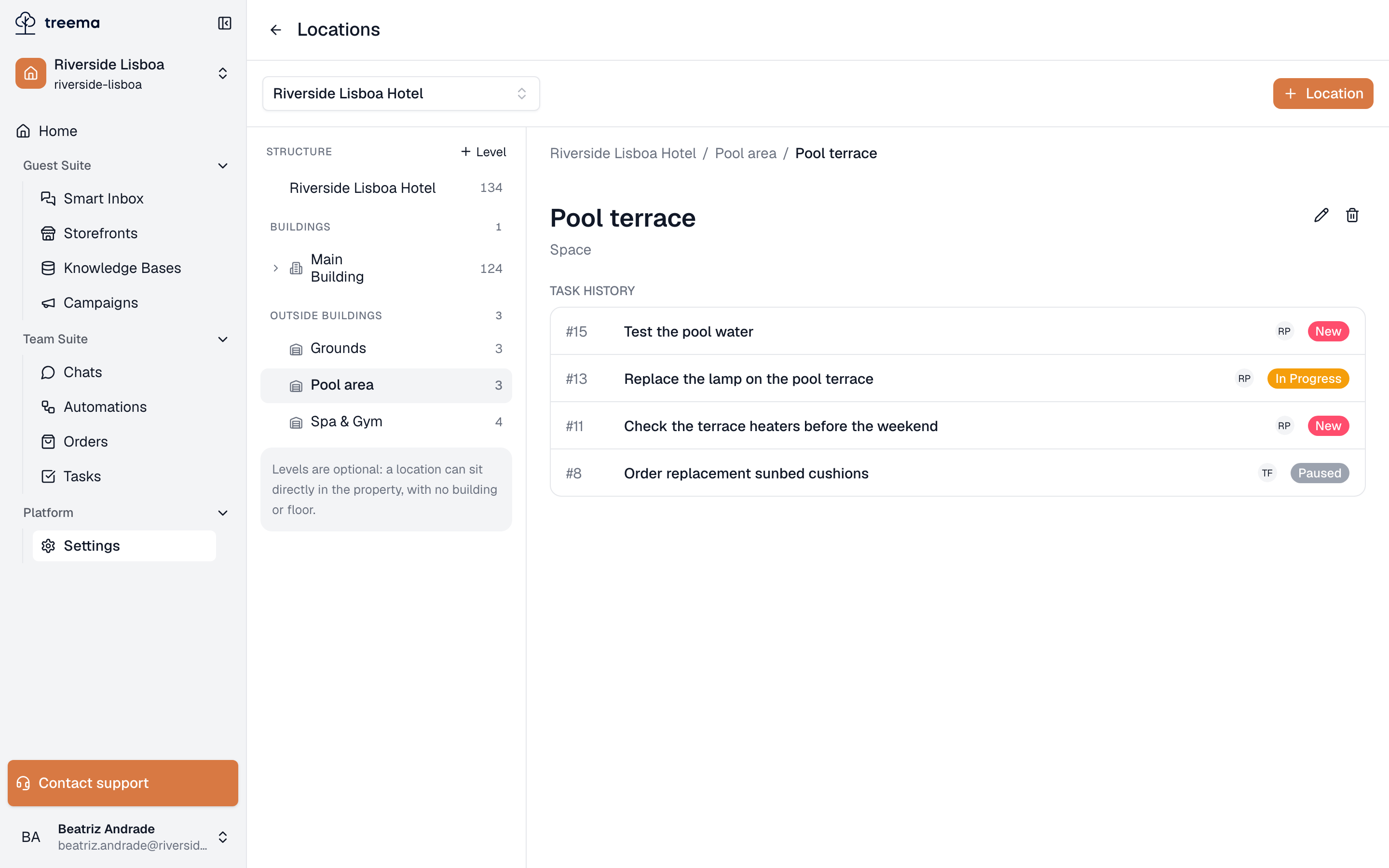
- The location, its kind, and the buttons that rename, move or remove it
- Task history — every task that named this location
Opening a room or a space shows its name, its kind, and its Task history: every task attached to this location, with its number, title, who it is assigned to and its current status. Clicking a row opens that task, Load more brings in the rest, and a location nothing has happened in yet says No tasks for this location yet.
This is the answer to "what keeps going wrong in 412": one room, its whole record, in one place.
Room status from the PMS
Where a guest room is linked to a PMS that reports room statuses, its tile carries one more short line under the name: how the room stands right now in the hotel system — Dirty · Occupied, Clean · Vacant, Inspected. A small dot before the words says the same at a glance: red when the room can't be sold, orange when it needs cleaning, green when it is clean. When a room is Out of order or Out of service, the line says only that — it matters more than cleaning and occupancy. A guest's request goes on a line of its own under the status, with its own icon: Do not disturb or Make up room. On a narrow tile the status words can be cut short; hold the pointer over them to read them in full, or open the room.
Opening the room shows the whole status under its PMS link, in a block headed Status in the PMS:
| Line | What it can say |
|---|---|
| Cleaning | Dirty, Needs a quick clean, Clean or Inspected |
| Occupancy | Vacant or Occupied |
| Condition | Out of order or Out of service — only while the room is out of use |
| Guest request | Do not disturb or Make up room — only while a guest has asked for one |
Under Guests comes one line per guest the PMS names: the name, the dates of the stay, how many adults and children, and a VIP code where the guest has one. The last line says when the status last changed — Updated 5 minutes ago. A change made in the PMS reaches the map within minutes, with no need to reload the page.
Room statuses come from Opera connected through HRS IFC GATE, Fidelio, Logus, 1C:Hotel and Edelweiss. Rooms connected through Opera Cloud, or through the Opera agent installed at the hotel, show no status — and neither do rooms that aren't linked, or linked rooms the PMS says nothing about: their tiles look exactly as they always have.
Acting on several at once
- 1
- 2
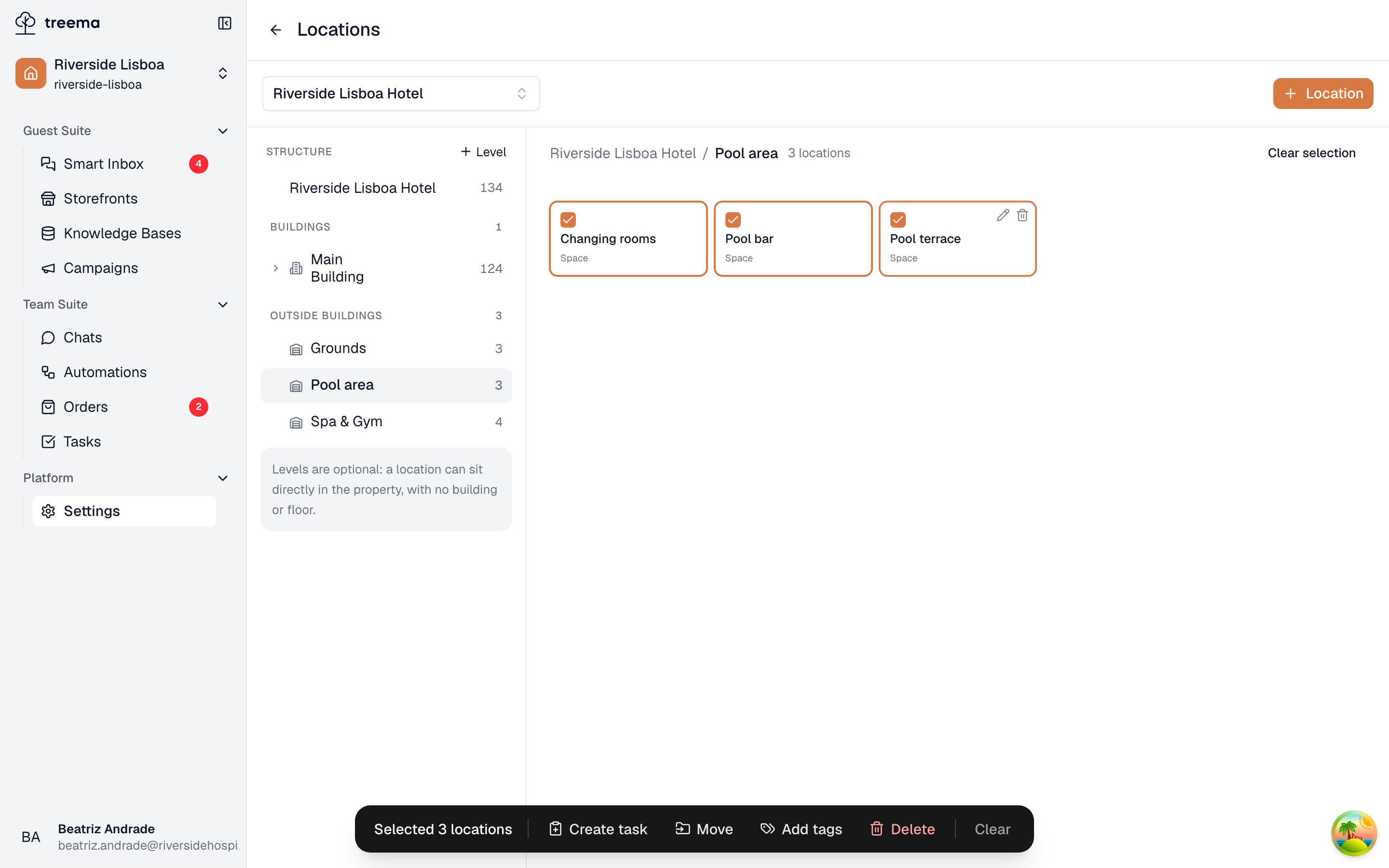
- Ticked tiles are outlined; the checkbox is on the tile itself
- What you can do with the selection
Every tile has a checkbox, and Select all above the tiles ticks the whole level (it becomes Clear selection once everything is ticked). A bar appears at the bottom of the screen for as long as anything is selected:
- Create task opens the new-task form with the property and all the selected locations already filled in — the quickest way to raise one job that covers a whole floor.
- Move puts every selected location somewhere else in the property — see Adding and editing locations.
- Delete removes every selected location, and everything nested under them, after confirming.
- Clear drops the selection.
The selection survives moving around the map, so you can tick two rooms on Floor 1, walk up to Floor 2, tick a third, and raise one task for all three.