The conversation
Reading a thread and replying — messages, delivery, attachments, and what the header tells you.
Opening a conversation puts the whole history with that guest in front of you, oldest at the top, and a box to reply at the bottom. Everything else on the screen exists to answer two questions: who is this, and what state is this in.
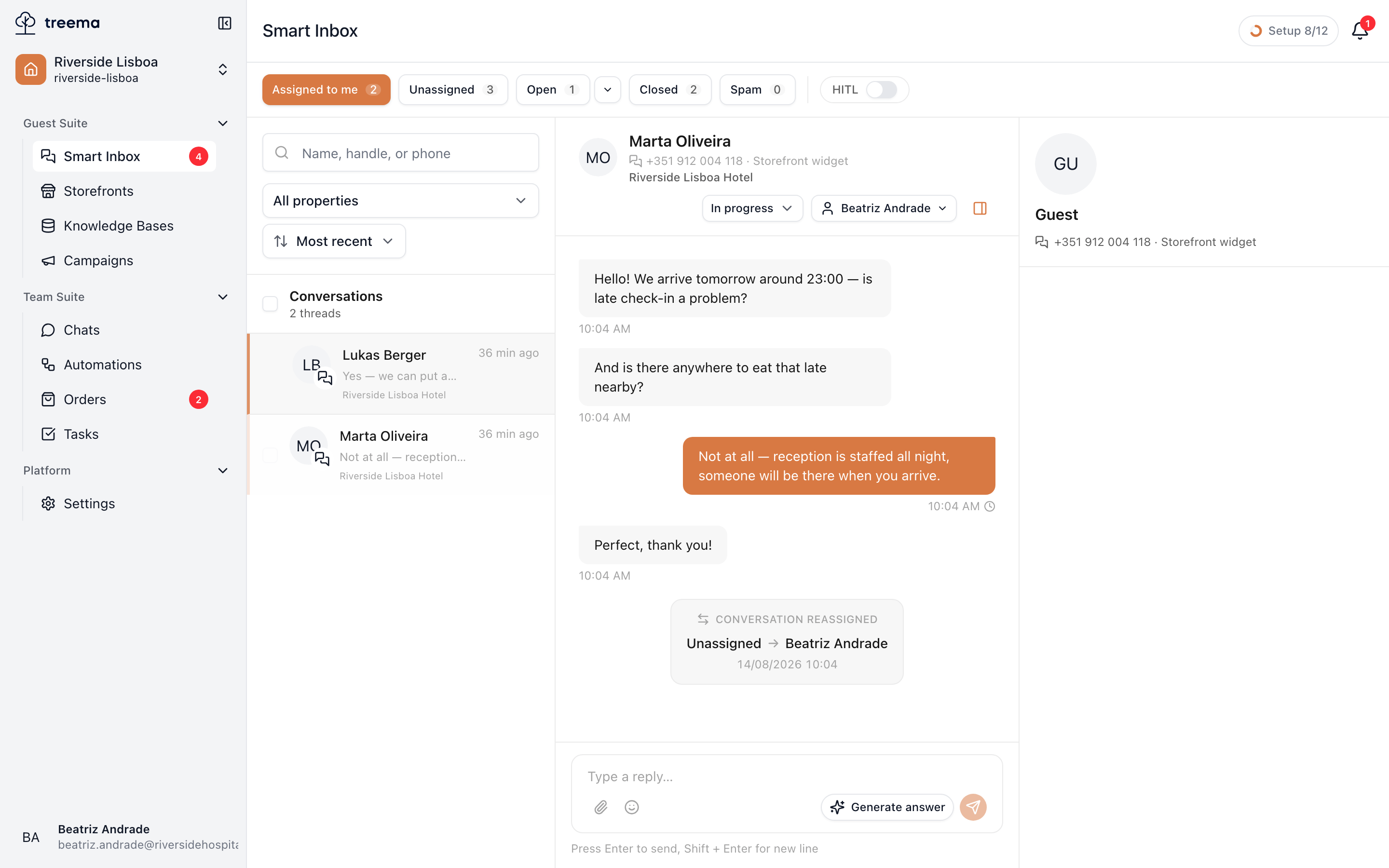
- 1
- 2
- 3
- Who it is, the alert, the status, and who owns it
- The history: guest on the left, your team on the right
- Where you reply, with attachments and the assistant
The header
Left to right: the guest's name, the handle they wrote from and the channel it came through, and the property the conversation belongs to. On the right, the three controls that change the conversation's state:
- Resolve alert — only there when the assistant has flagged this conversation. See what the assistant does.
- The status — New, In progress, Waiting, Closed or Spam; see statuses.
- The assignee — who owns it; see who is handling it.
Clicking the guest's name opens (or closes) the panel on the right, which shows the contact behind the conversation and the channel it came through.
The messages
The guest is on the left, your team on the right. Each message carries its time — in your own time zone, not the guest's — and your own messages carry a delivery mark:
| Mark | Means |
|---|---|
| A clock | Sending. |
| One tick | Sent. |
| Two ticks | Delivered to the guest, or read. |
| A red warning | It didn't go. Retry send appears on the message. |
A failed message is worth taking seriously rather than retyping: the retry sends exactly what you wrote, attachments included.
Messages the assistant sent on its own are marked as such above the bubble, so nobody mistakes a machine's promise for a colleague's.
If new messages arrive while you're reading further up, a button appears at the bottom — "2 new messages — jump to latest" — instead of yanking the view down under your eyes.
Attachments
Guests send photographs and documents; so can you. Images open full-size in a viewer you can page through, video and audio play in place, and everything else is a row with Download.
The paperclip in the composer attaches up to five files per message, up to 10 MB each — images, PDFs, Word and Excel documents, plain text and CSV. Anything bigger is refused before it uploads, with the limit in the message.
Replying
Type and send. Your message appears immediately, before the channel has confirmed it, which is why the delivery mark is worth a glance on anything important.
When the last message in the thread is the guest's, the composer also offers Generate answer — the assistant drafts a reply for you to approve, edit or discard. It never sends anything by itself; the assistant page covers it in full.
One guest, one conversation, however long the gap
A returning guest lands back in the same thread rather than starting a fresh one. That is what makes the history worth reading before you answer — and worth writing for the person who opens it next.
Next
- Who is handling it — taking a conversation and handing it over.
- Statuses and closing — leaving the queue in a state that reads correctly.