Finding a conversation
The conversation list — what each row tells you, the filters above it, sorting it, and searching inside messages.
After a few weeks the list on the left is long. Everything on this page exists to make it short again.
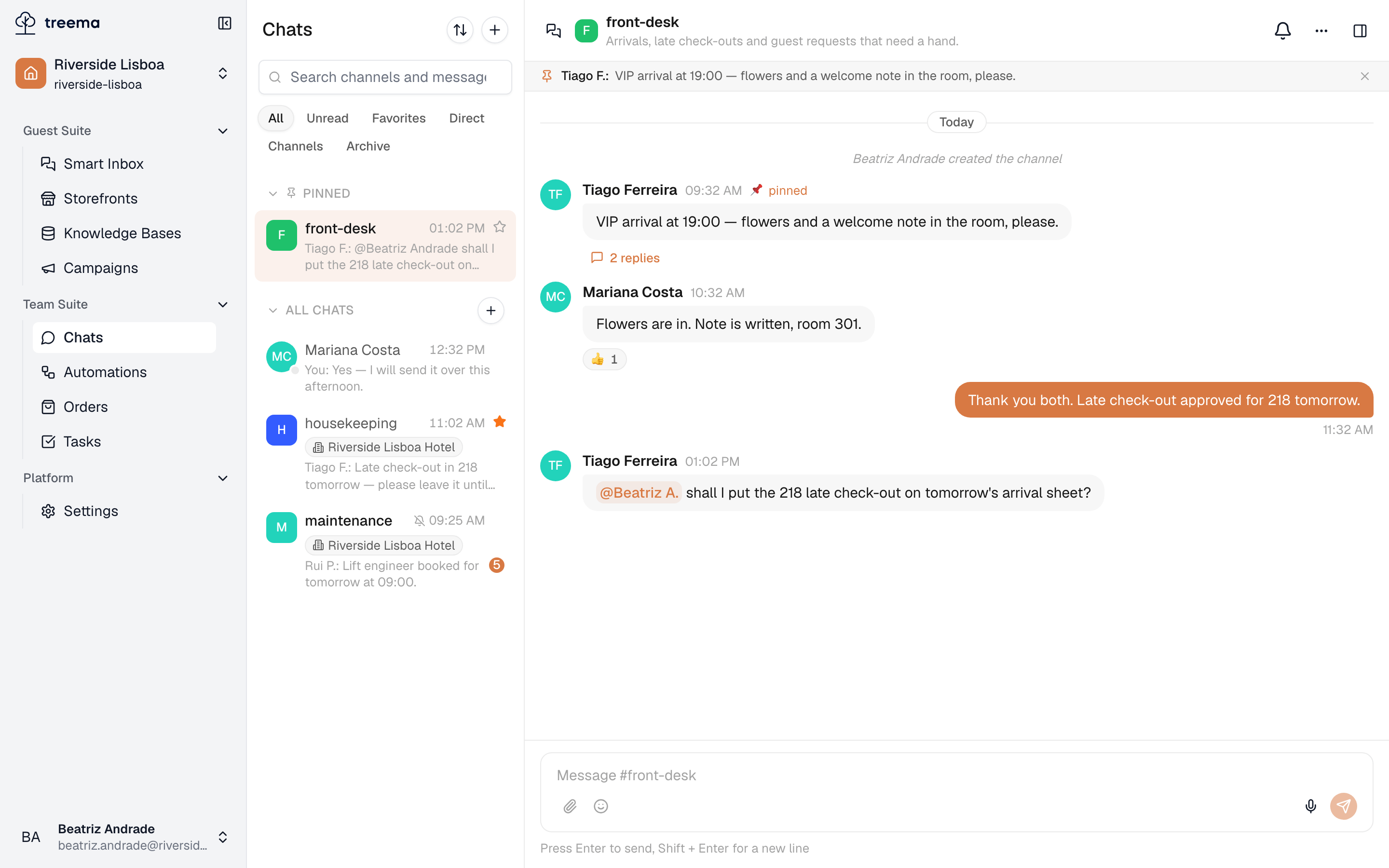
- 1
- 2
- 3
- Searches names and the messages themselves
- Narrow the list to one kind of conversation
- Pinned conversations first, then all the others, most recent first
Reading a row
- The name — the channel's, or the person's for a direct message.
- A property chip under the name, when the channel belongs to one property rather than the whole workspace.
- The last message, prefixed with who wrote it. Your own show as You, so you can tell at a glance whether the ball is in your court.
- The time of that message.
- A blue badge with the number of messages you haven't read, and a red @ badge when some of them mention you by name.
- A padlock on a private channel, a crossed-out bell on one you muted, a star on one you marked a favourite.
Opening a conversation marks it read, and the badges go.
The filters
The chips under the search box narrow the whole list:
| Filter | Shows |
|---|---|
| All | Everything you can see. |
| Unread | Only conversations with something waiting. |
| Favorites | The ones you starred. |
| Direct | One-to-one conversations only. |
| Channels | Channels only. |
| Archive | Channels that have been retired. |
Archive only appears when there is an archived channel you can reach — see archiving.
Sorting the list
The button with two arrows at the top of the list, across from the Chats heading, opens Sort by.
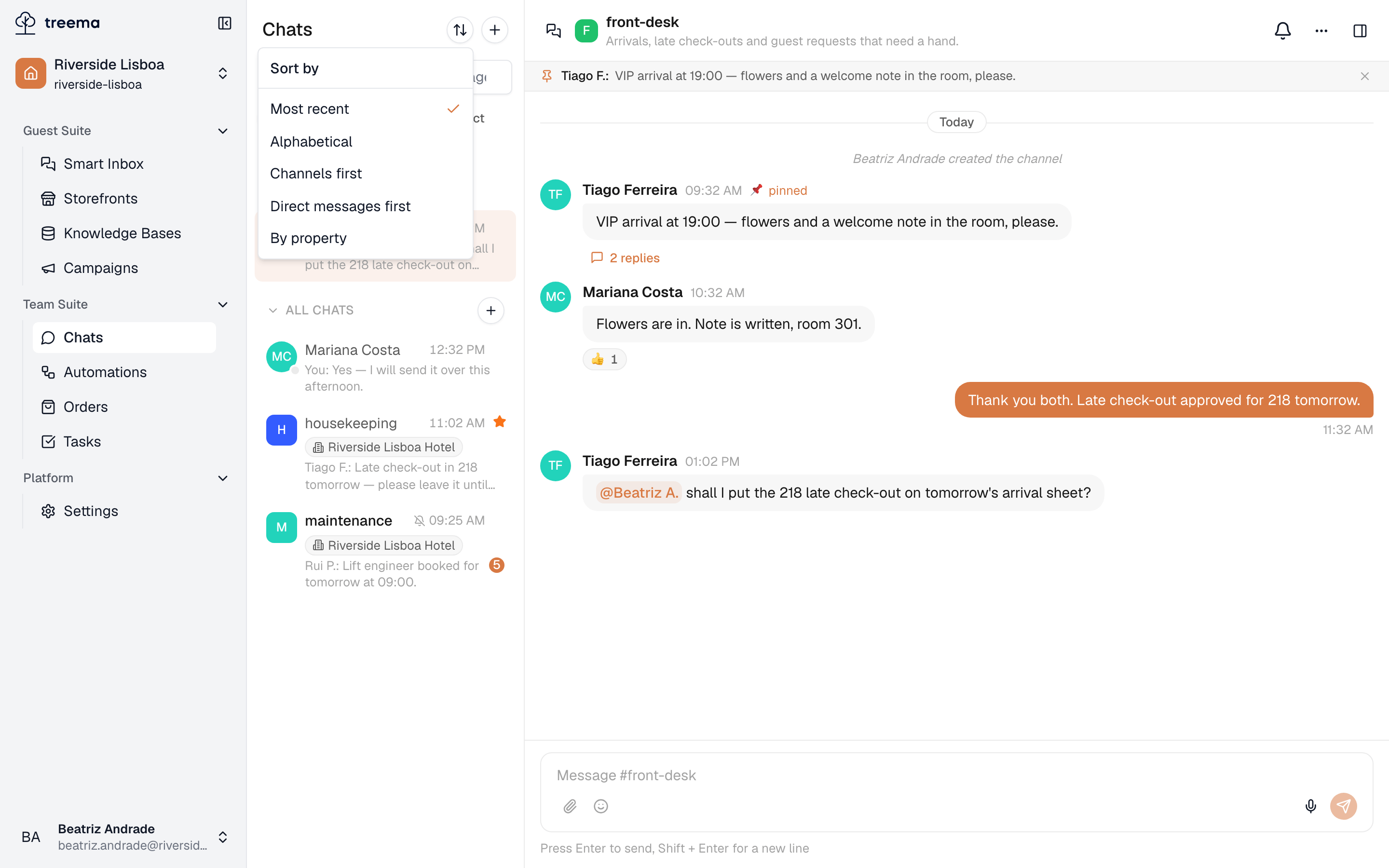
- 1
- 2
- Sort by — the button that opens the choice of order
- The five orders, with a tick beside the one in use
| Order | What you get |
|---|---|
| Most recent | The conversation with the newest message on top. The list opens in this order. |
| Alphabetical | By name — the channel's, or the person's for a direct message. |
| Channels first | Two groups, Channels and then Direct messages, the most recent on top in each. |
| Direct messages first | The same two groups, the other way round. |
| By property | Each property's channels together, properties in alphabetical order and the most recent on top within each. Workspace channels and direct messages come after them. |
A tick marks the order in use. Whichever you pick, pinned conversations stay at the very top and are sorted the same way among themselves, and the Archive filter follows it too.
Normally the list has two groups: Pinned, and All chats for everything else. Channels first and Direct messages first split the rest into Channels and Direct messages — so do the Channels and Direct filters. Click any heading to fold its group away.
The order is yours alone: changing it doesn't reorder anybody else's list.
Three ways to keep a conversation close
Each is per person: what you pin is not pinned for anybody else.
- Star it — hover the row and press the star. It joins the Favorites filter.
- Pin to top — in the right-hand panel of an open conversation. Pinned conversations get their own group at the very top of the list, above everything else.
- Mute it — same panel, or the ⋯ menu in the header. See Notifications.
Search
The box at the top searches two things at once: the names of conversations, and the text inside messages. Results arrive in groups — Channels, Direct messages, Messages — and choosing a message result opens its channel scrolled to that message, highlighted, with everything said around it.
That is the real reason to keep work talk in channels. "Which room did they say the leak was in?" is a question you can answer six weeks later from a search box.
Search only reaches what you can see
A private channel you are not a member of is not searched, and never appears in results. Public channels are — including ones you haven't joined, so you may find an answer in a room you've never opened.
Somebody you can't find
If the person or channel you expect isn't in the list at all:
- A private channel is invisible until somebody adds you.
- A property channel is only visible to people whose role in that property includes Reads chats — see your team's roles.
- An archived channel is behind the Archive filter, not the list.