Settings
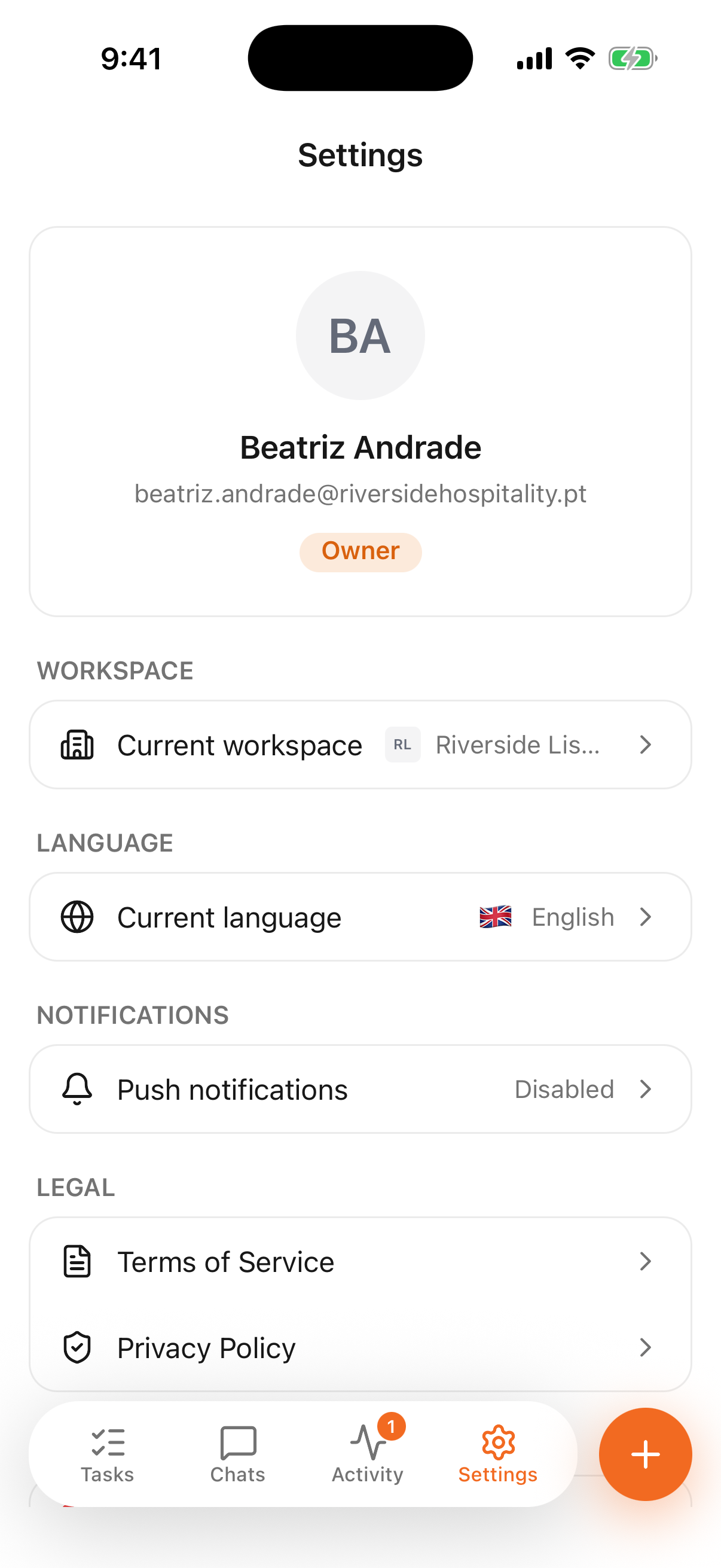
Your account on this phone — which workspace you're in, the app's language, push notifications, and how to sign out.
Settings is short on purpose: it holds what belongs to this phone and this person, and nothing that belongs to the business.
- 1
- Who you are here, and the four things you can change
At the top: your name, the address you signed in with, and your role in the current workspace.
Workspace
Current workspace shows which one you're looking at and switches to another. Everything else in the app — tasks, chats, the activity feed — follows that choice, so a manager covering two properties changes it here rather than signing out.
Language
Current language changes the language of the app. It's your setting, not the workspace's: your colleague on the next floor can keep theirs in another language, and the same task reads correctly for both of you.
The change follows your account, so the web version switches too.
Push notifications
The row shows whether this phone is allowed to notify you, and takes you to the switch when it isn't.
Turning notifications off doesn't turn work off
Push is a convenience; the activity feed is the record. Everything addressed to you waits there whether the phone buzzed or not — which is worth knowing before you silence an app during a shift.
Legal, and signing out
Terms of Service and Privacy Policy open the current documents. Below them sit the app's version — useful when you report something that looks wrong — and Log out.
Signing out clears this phone only. Your work, your tasks and your messages stay where they are, and signing back in brings them all back.