# Checklist templates (https://docs.treema.ai/en/docs/tasks/checklists)
Reusable checklists your team applies to tasks — building one, duplicating it, and keeping it honest.
Some work is really a list of small things: turning over a room, opening the pool, closing the
kitchen. A **checklist template** is that list, written once, and given to a task whenever the work
comes round.
Templates live on the Tasks page, under the **Templates** tab on its **Checklist templates**
sub-tab. They belong to the workspace, so every property can use the same ones. The other sub-tab
holds [task templates](https://docs.treema.ai/en/docs/tasks/templates/), which are whole tasks rather than lists.
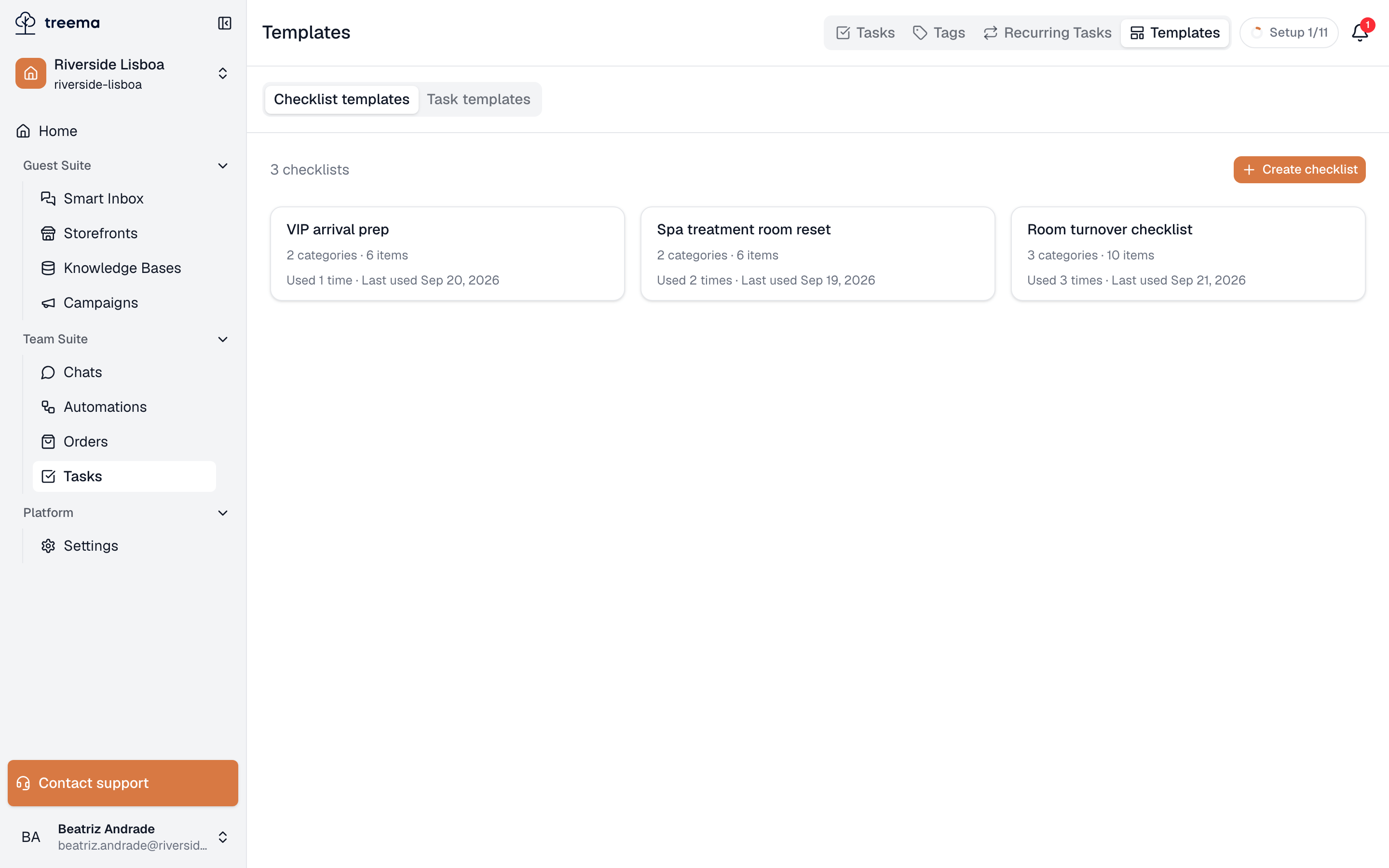
1. Checklist templates and Task templates — the two halves of the Templates tab
2. One card per template, with how big it is and how often it gets used
Each card shows what the template contains — **3 categories · 14 items** — and how much use it
gets: **Used 12 times**, with the date it was last used, or **Never used** for one nobody has
applied yet. That second line is worth reading occasionally: a template nobody uses is either wrong
or forgotten.
## Building one [#building-one]
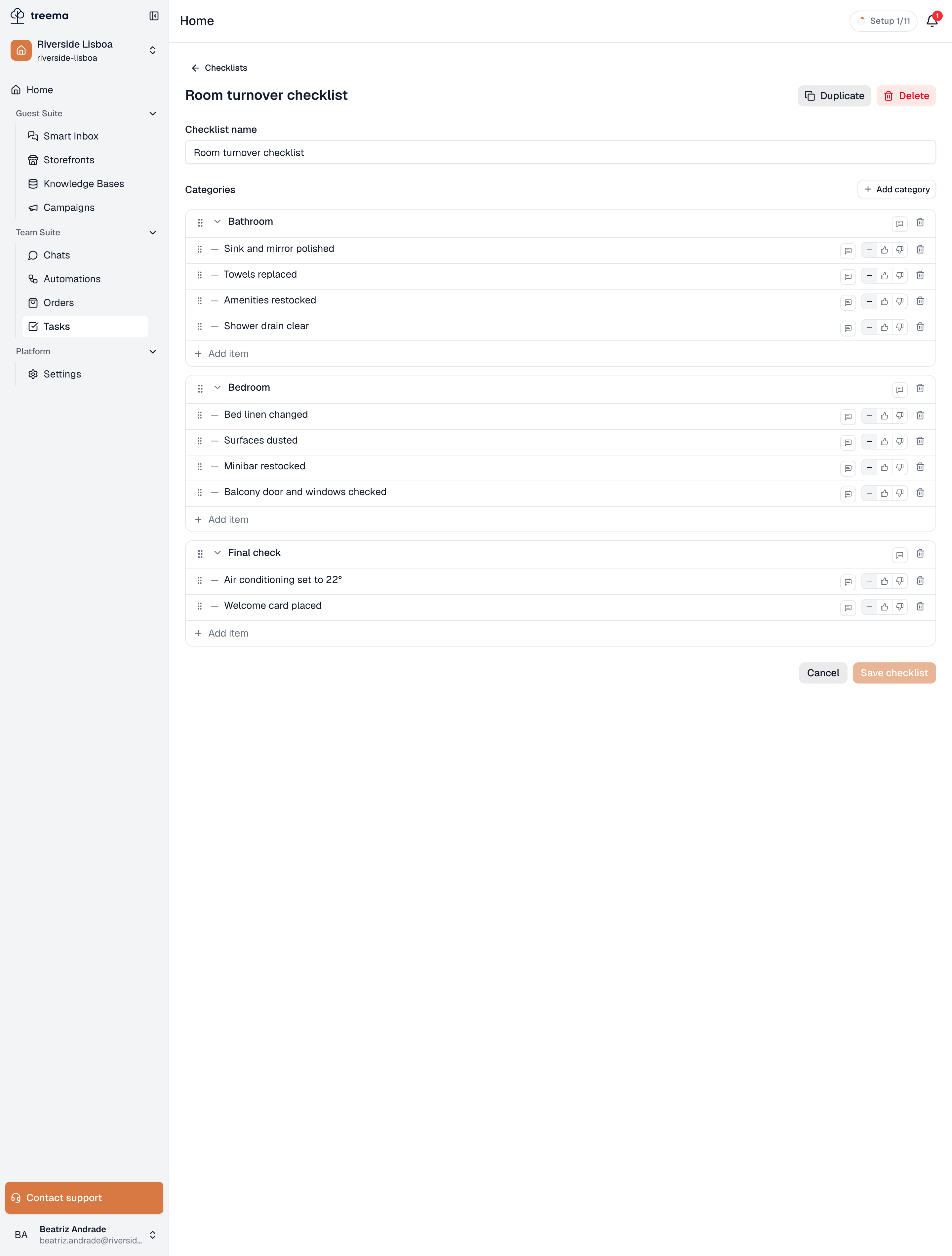
1. The name, the categories, and the items inside them
**Create checklist** opens the editor, and a template is two levels deep:
* **Checklist name** — what this list is, e.g. "Room turnover checklist".
* **Categories** — the sections of the work: `Bathroom`, `Bedroom`, `Minibar`. Add them with **Add
category**.
* **Items** — the actual checks inside a category, added with **Add item**.
Every item has a **Default state**, and this is the setting worth thinking about:
| Default state | The item starts as |
| --------------------- | ---------------------------------- |
| **No default** | Unmarked — somebody has to decide. |
| **Default: done** | Already ticked. |
| **Default: not done** | Already marked as not done. |
An item that starts ticked is one nobody has to look at. That's fine for a step which is
genuinely automatic, and quietly corrosive everywhere else — the list still comes back complete
when the work wasn't done. For anything you actually want confirmed, leave it at **No default**.
**Save checklist** stores it. A template needs a name and at least one item with a name before it
can be saved.
## Changing a template later [#changing-a-template-later]
Open it from the list and edit it the same way. Two buttons sit at the top:
* **Duplicate** — copies the whole template and opens the copy, which is how you make a variant
("Room turnover — suites") without endangering the original.
* **Delete** — removes the template, after a confirmation naming it.
Editing a template changes what future tasks get. Checklists already sitting on tasks are not
rewritten — the room that was cleaned yesterday keeps the list that was actually used, which is what
makes a completed checklist evidence rather than a guess.
If a template is in daily use and you want to try a different structure, duplicate it and change
the copy. The original keeps producing consistent results while you work out whether the new
version is better.
## Who can do what [#who-can-do-what]
Anyone with access to tasks can see the templates and apply one to a task. Creating, editing,
duplicating and deleting them needs the **Manages checklist templates** permission. Somebody without access at all is told so plainly:
"You don't have access to checklists."
## Next [#next]
* [Checklists on a task](https://docs.treema.ai/en/docs/tasks/checklists/in-task/) — what the person doing the work actually sees.